
The Complete Guide to Compress and Resize Image Online Without Losing Quality in 2026
We have all been there. You capture a stunning high-resolution photo, design a perfect social media graphic, or export a detailed product image, only to find it is too large to upload. The file size max is exceeded, the website speed plummets, or the email attachment bounces back. Suddenly, that perfect image becomes a frustrating roadblock.
This is one of the most common dilemmas in our digital world. You need a smaller, more manageable file, but you refuse to sacrifice the visual fidelity you worked so hard to achieve. The good news? You do not need expensive software or a degree in graphic design to solve this. In 2026, learning how to compress and resize image online without losing quality is an essential skill for anyone who creates content.
Whether you are a blogger, an e-commerce seller, or just managing your personal photo library, getting your images to the perfect size and format is critical. It impacts your website’s loading speed, your SEO rankings, and how your brand is perceived on social media. In this ultimate guide, I will walk you through everything you need to know, share the best free tool to get the job done, and provide my expert tips to ensure your pictures always look their absolute best.
Quick Answer: How to Compress and Resize an Image Online
To compress and resize image online without losing quality, you need a tool that uses smart compression algorithms rather than simply removing pixels. The fastest method is to use a dedicated online tool. You upload your image, select your desired dimensions and file size, and let the tool do the work. For the best results, I recommend using the Compress and Resize Image tool, which is designed specifically for this task and requires no registration.

What Does "Compress and Resize Image Online Without Losing Quality" Mean?
For many beginners, these terms can sound technical, but the concepts are actually quite simple. Let us break them down.
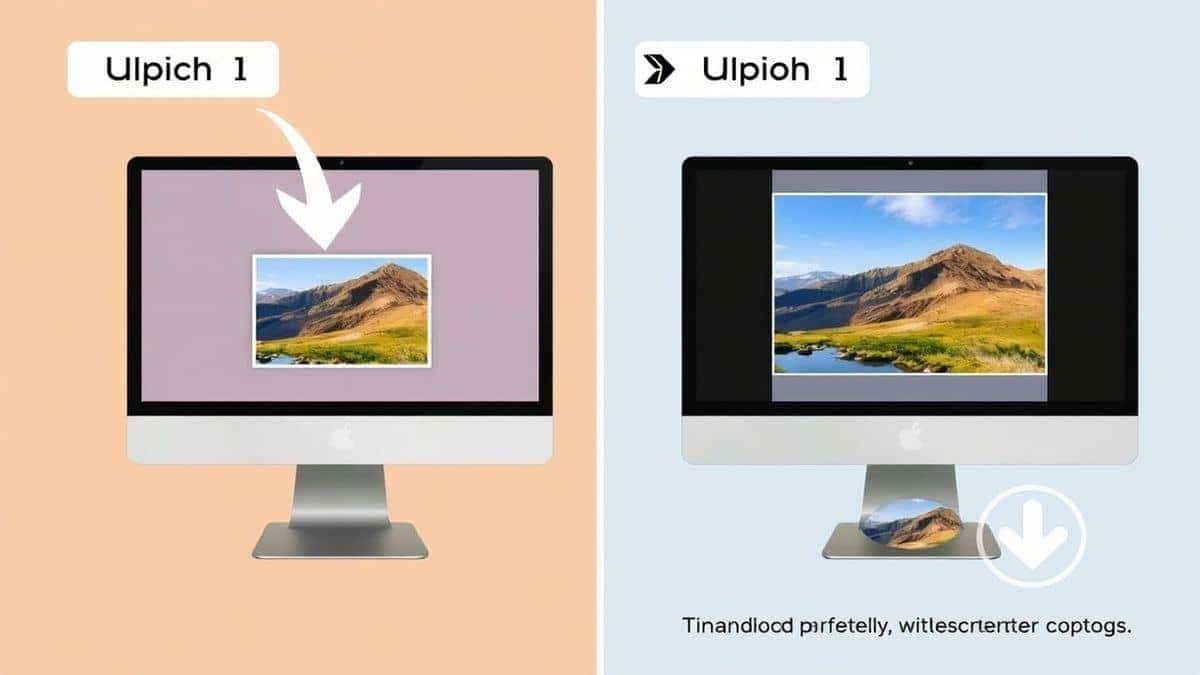
Resizing an image refers to changing the physical dimensions of your picture—its width and height measured in pixels. You might need to resize a massive 4000x3000 pixel photo down to a 1200x630 pixel image to fit a blog post header perfectly.
Compressing an image is the process of reducing the file size (the number of kilobytes or megabytes) without necessarily changing the dimensions. Think of it like packing a suitcase. Resizing is like getting a smaller suitcase. Compression is like using vacuum-sealed bags to fit more into the same suitcase without damaging the clothes inside.
When we talk about doing this without losing quality, we are referring to "lossless" or "smart lossy" compression. A good tool analyzes your image and removes redundant data that your eye isn't likely to notice, resulting in a much smaller file that looks virtually identical to the original. The goal is to find that perfect sweet spot where the file size drops dramatically, but the visual clarity remains pristine.
Why Image Resizing and Compression Matters in 2026
You might wonder why you cannot just upload the original file. In a perfect world with unlimited bandwidth and instant loading speeds, you could. But in reality, properly managing your images is crucial for several key reasons.
Website Speed and User Experience
This is the most critical factor. Large, unoptimized images are the number one killer of website loading times. In my experience running performance audits for various sites, I have seen a single, unoptimized hero image add 3-5 seconds to a page's load time. Visitors are impatient; if your site takes longer than three seconds to load, a significant percentage will leave and never come back.
Search Engine Optimization (SEO)
Google has made it crystal clear that page speed is a ranking factor. Slow websites get penalized in search results. By taking the time to compress and resize image online without losing quality, you are directly improving your Core Web Vitals, particularly Largest Contentful Paint (LCP). A faster site not only keeps users happy but also tells Google you are providing a high-quality experience.
Social Media and Platform Requirements
Every social media platform has its own preferred image dimensions. An image that looks perfect on Instagram might get cropped awkwardly on Facebook or Twitter. Furthermore, platforms will often automatically compress images that are too large, and their compression algorithms are not always the best. You have much more control if you resize image without losing quality before you upload it. You ensure it fits the frame perfectly and looks as sharp as intended.
Storage and Bandwidth Costs
For businesses and heavy users, file size has a direct cost. Large images take up more space on your hosting server and consume more bandwidth every time a user visits your site. By optimizing your images, you can significantly reduce these operational costs.
The Best Tool: Compress and Resize Image
After testing dozens of different applications and online services, I keep coming back to a single tool for its perfect balance of simplicity, power, and results. When you need to quickly and effectively compress and resize image online without losing quality, the Compress and Resize Image tool is my top recommendation.
This free online tool is designed for everyone. Whether you are a professional designer or someone just trying to email a photo, the workflow is incredibly intuitive. You do not need to create an account, install any software, or worry about watermarks. It handles all the most common image formats, including JPG, PNG, and WebP, and uses advanced algorithms to maintain the highest possible quality at your chosen file size.
Key Advantages I Noticed During Testing:
- Speed: It processes images in seconds, even for larger files.
- Quality Retention: The tool excels at maintaining sharpness and color accuracy.
- Simplicity: The user interface is clean and distraction-free, guiding you through the two-step process.
- Zero Friction: The fact that there is no registration required is a huge plus for users who want a quick solution.
Step-by-Step Guide to Compressing and Resizing Your Image
Ready to optimize your images? Follow this simple guide. You will have a perfectly sized, web-ready image in under a minute.
- Open the Tool
Navigate to the Compress and Resize Image tool by visiting the following link in your web browser: https://resizeon.com/image-tools/compress-and-resize-image - Upload Your Image
Click the upload area or simply drag and drop your image file from your computer into the designated box. The tool accepts a wide range of formats, so you do not need to worry about converting your file first. - Select Your Desired Dimensions
Once the image is uploaded, you will see options to adjust the width and height. You can choose a common preset size (like for Instagram or Twitter) or enter custom pixel values. A practical tip is to ensure the "lock" icon is closed—this maintains the original aspect ratio, preventing your image from becoming stretched or squashed. - Adjust Compression Settings
Below the dimensions, you will typically find a quality slider. This is where you control the balance between file size and image quality. For most web uses, a quality setting between 70% and 85% provides an excellent reduction in file size with no visible loss in quality. - Download Your Optimized Image
Click the "Resize and Compress" or "Download" button. The tool will process your image in the background. Within moments, the new, optimized file will be downloaded to your computer, ready to be uploaded to your website, social media, or email.
Best Practices for Optimal Image Quality
Knowing how to use a tool is one thing, but understanding why certain practices work will make you an expert. Here are my top recommendations for getting the best results every time.
- Always Maintain the Aspect Ratio
This is perhaps the most common mistake I see. If you manually change the width to 500 pixels and the height to 400 pixels, you will distort the image. Always ensure your editing tool locks the aspect ratio (width:height proportion) so your image scales correctly. - Start with the Highest Quality Original
You cannot create quality out of thin air. If you start with a tiny, pixelated image, resizing it to be larger will only make it look worse. Always begin with the largest and highest resolution version of the image you have available. - Choose the Right File Format
For photographs with lots of colors and gradients, JPG is usually the best choice. For graphics with text, logos, or sharp lines, PNG is superior because it offers better clarity. The modern WebP format often provides the best of both worlds—small file sizes with high quality—and is supported by all major browsers in 2026. - Resize for the Final Destination
Do not just guess at the size. For websites, look at your CMS (Content Management System) to see the maximum width of your content area. For social media, use a platform-specific image size guide to get the exact dimensions. Uploading a perfectly sized image means the platform does not have to do any extra work to display it.
Common Mistakes to Avoid When Optimizing Images
Even experienced designers can fall into these traps. Here is what to watch out for.
- Over-Compressing the Image
Pushing the compression too far is a surefire way to ruin a good photo. You will start to see "artifacts"—ugly blocks or blurry patches in the image, especially in areas with gradients or fine details. If you see the quality degrade, dial the compression back up a few notches. - Using the Wrong Tool
I tested multiple image resizers and found that many free tools use very basic algorithms. They simply discard pixels, resulting in jagged, rough edges. A good tool, like the one recommended above, uses sophisticated algorithms to resample the image, creating a smooth result even when shrinking the picture significantly. - Ignoring the Metadata
Many images contain EXIF data—information about the camera, date, time, and location. This data can add unnecessary kilobytes to your file. Most good compression tools will give you the option to strip this metadata, saving you a bit of extra space without affecting the image itself.
Comparison with Other Image Optimization Methods
How does using a dedicated online tool compare to the alternatives?
- vs. Adobe Photoshop
Photoshop is an industry giant with unparalleled control. However, it comes with a hefty subscription cost, a steep learning curve, and requires software installation. For the simple task of resizing and compressing an image for the web, it is overkill. An online tool is free, instant, and requires zero training. - vs. Basic Operating System Tools
You can right-click an image on a PC or Mac and change its size, but these built-in tools are very basic. They often lack compression controls and can produce blocky results. They are fine for personal use, but for professional-looking results, a dedicated online tool is far superior. - vs. Other Free Online Tools
The landscape of free online tools is crowded. One mistake many users make is choosing the first one they find, which may be riddled with ads, have slow servers, or, worse, upload images to insecure servers. The Compress and Resize Image tool stands out because of its clean interface, fast processing, and clear focus on user privacy and quality.
Frequently Asked Questions
1. Can I really compress an image without losing quality?
Yes, you can. While technically "lossless" compression exists, it often yields minimal file size savings. "Visually lossless" compression is the goal for the web. This means the file size is significantly reduced, but the changes are imperceptible to the human eye. A good tool makes this possible.
2. What is the best file format for web images?
For 2026, WebP is often the best choice as it provides excellent quality with small file sizes. However, JPG is still a fantastic and universally compatible choice for photographs, while PNG is best for images with text, logos, or transparent backgrounds.
3. How much can I reduce the file size?
It depends on the image and the format. In my experience, you can often reduce a JPG file by 50% to 80% with no visible quality loss. Complex images with lots of detail won't compress as much as simple images with large, solid areas of color.
4. What are the ideal image dimensions for a blog post?
This depends on your blog's theme, but a common and safe width is 1200 pixels. This ensures the image looks sharp on high-resolution displays and fits within most content areas. Check your website's image size guide in your theme documentation for the exact specification.
5. Is it safe to upload my images to an online tool?
You should always check the privacy policy of any tool you use. Reputable tools, like the Compress and Resize Image tool, typically process your image and then delete it from their servers shortly after your download is complete. Avoid tools that require you to create an account or seem to store your images permanently.
6. What is the difference between resizing and compressing?
Resizing changes the pixel dimensions (width and height) of an image. Compressing reduces the data within the image to make the file size (KB/MB) smaller. You often do both to get the optimal result.
7. Can I resize an image to be larger?
Technically yes, but it is not recommended. Enlarging a small image ("upscaling") requires the software to guess what the missing pixels should look like, which usually results in a blurry or pixelated image. It is always best to start with a source image that is larger than you need.
8. How do I know which file size to aim for?
As a rule of thumb, try to keep individual blog post images under 200 KB. Hero images or large banners can sometimes be up to 300-400 KB. For thumbnails, aim for under 50 KB. The goal is to balance quality with speed.
Conclusion
Mastering the art of image optimization is no longer just a nice-to-have skill; it is a necessity for effective online communication. Whether you are building a website, managing a social media presence, or running an online store, taking the time to properly size and compress your visuals pays dividends in speed, SEO, and user engagement.
The process does not have to be complicated or expensive. By using a reliable, free tool like Compress and Resize Image, you can achieve professional results in seconds. You get the power to take full control of your images, ensuring they load fast and look fantastic everywhere they appear.
Stop letting oversized, unoptimized images slow you down. Try the Compress and Resize Image tool today and see the difference it makes for your next project. Your website visitors (and your loading speed) will thank you.

