The Ultimate Guide: How to Resize Image to 1:1 Square for Instagram Posts in 2026
You've captured the perfect shot, your product looks stunning, or you've designed a beautiful graphic—but when you go to upload it to Instagram, the cropping tool butchers your composition. The sides are chopped off, the focus is lost, or you're left with awkward empty space. Sound familiar?
This is the most common frustration for anyone posting on social media. Instagram's grid is built on squares, and if your original photo isn't a perfect 1:1 ratio, the platform forces a crop that can ruin your visual story. Whether you're a content creator maintaining a polished feed, an e-commerce seller showcasing products, or just someone sharing memories, knowing how to resize image to 1:1 square for Instagram posts is an essential skill.
Getting this right isn't just about aesthetics. It's about maintaining image quality, controlling what your audience sees, and presenting a professional brand image. In this guide, I'll walk you through everything you need to know, from the basics of aspect ratios to a complete step-by-step tutorial using the best free tool available: Change Aspect Ratio to 1:1.
Quick Answer: How to Resize Image to 1:1 Square for Instagram Posts
How to resize image to 1:1 square for Instagram posts means transforming any rectangular photo (like from your phone camera) into a perfect square format without distorting the subject. You can do this instantly by using an online tool like ResizeOn's Aspect Ratio Changer: upload your image, select the 1:1 square crop, adjust the frame to capture the best part of your photo, and download your perfectly sized square image ready for Instagram.

What is "How to Resize Image to 1:1 Square for Instagram Posts"?
For anyone new to photo editing, let's break this down. An image's "aspect ratio" is the proportional relationship between its width and height. Your smartphone camera typically takes photos in a 3:4 or 16:9 ratio, which are rectangles. Instagram's classic post format, however, is a 1:1 ratio—meaning the width and height are exactly the same, forming a perfect square.
When you resize image to 1:1 square for Instagram posts, you are essentially transforming that rectangle into a square. This process involves two key actions:
- Cropping: Removing the excess parts of the image on the sides or top/bottom to fit within the square frame.
- Resizing: Adjusting the overall pixel dimensions to meet Instagram's requirements (around 1080 x 1080 pixels is ideal) while ensuring the subject remains clear and sharp.
It's not about squashing or stretching your image, which would distort your subject. It's about intelligently reframing your photo to fit the platform's most iconic format.
Why Image Resizing Matters for Your Instagram Success
You might think, "Can't I just let Instagram do its thing?" In my experience, relying on Instagram's in-app crop is a gamble. Here’s why taking control of your image resizing is crucial:
- Preserve Image Quality: When you upload a photo, Instagram compresses it. If you upload a low-resolution image, it will look pixelated. By resizing your image to the optimal 1080 x 1080 pixels beforehand, you give Instagram the highest quality version to work with, resulting in a sharper final post. Learning to resize image without losing quality is the secret to a professional-looking feed.
- Control the Composition: You are the artist. You know what the focal point of your image should be. When you crop to a square yourself, you decide what stays and what goes. You ensure that your subject, product, or the most important element is perfectly centered and framed, rather than leaving it to an automated algorithm.
- Faster Loading Times for Better SEO: While Instagram handles the hosting, the principle of file size matters. Overly large files can lead to slower uploads. More importantly, if you're repurposing these images for a website or blog post, properly compressed and resized images dramatically improve page load speed. Page speed is a direct Google ranking factor, so resizing your visuals contributes to your overall SEO health.
- Consistent Brand Aesthetic: A cohesive Instagram grid is a powerful branding tool. By using perfectly square images, you create a seamless, professional look where every post aligns perfectly, leaving no awkward gaps or mismatched borders.
- Platform Compliance: Instagram supports squares, verticals, and horizontals, but the square is the original and most stable format. It displays consistently across all devices without being cropped in the main feed view.
The Best Free Tool: Change Aspect Ratio to 1:1
So, how do you actually do this without buying expensive software? I tested multiple image resizers and found that most are either complicated, filled with ads, or require you to create an account. That's why I always recommend the Change Aspect Ratio to 1:1 tool by ResizeOn.
This tool stands out because it was designed with the user's frustration in mind. Transform your photos instantly with our free aspect ratio changer. Perfect for social media, product listings, and profile pics. Simply upload, crop to a precise square (1:1), and download. No registration, fast, and easy for all devices.
Why this tool is perfect for your needs:
- Simplicity: The interface is incredibly clean. You don't need to be a designer to use it.
- Speed: The processing is almost instantaneous. You can resize an image in under a minute.
- No Registration: You don't have to hand over your email address or sign up for anything. It's truly free and private.
- Quality Preservation: It allows you to resize without losing quality, ensuring your final image is crisp and clear.
- Accessibility: It works on any device—your computer, tablet, or phone.
Step-by-Step Guide: How to Resize an Image to a Perfect Square
Ready to make your images Instagram-ready? Follow this simple guide. In my experience, this is the fastest and most reliable method available online.
Step 1: Access the Tool
Open your web browser and go to the dedicated tool page: https://resizeon.com/image-tools/change-aspect-ratio-to-1-1 . It works on any device, so you can do this from your phone right after taking a picture.
Step 2: Upload Your Image
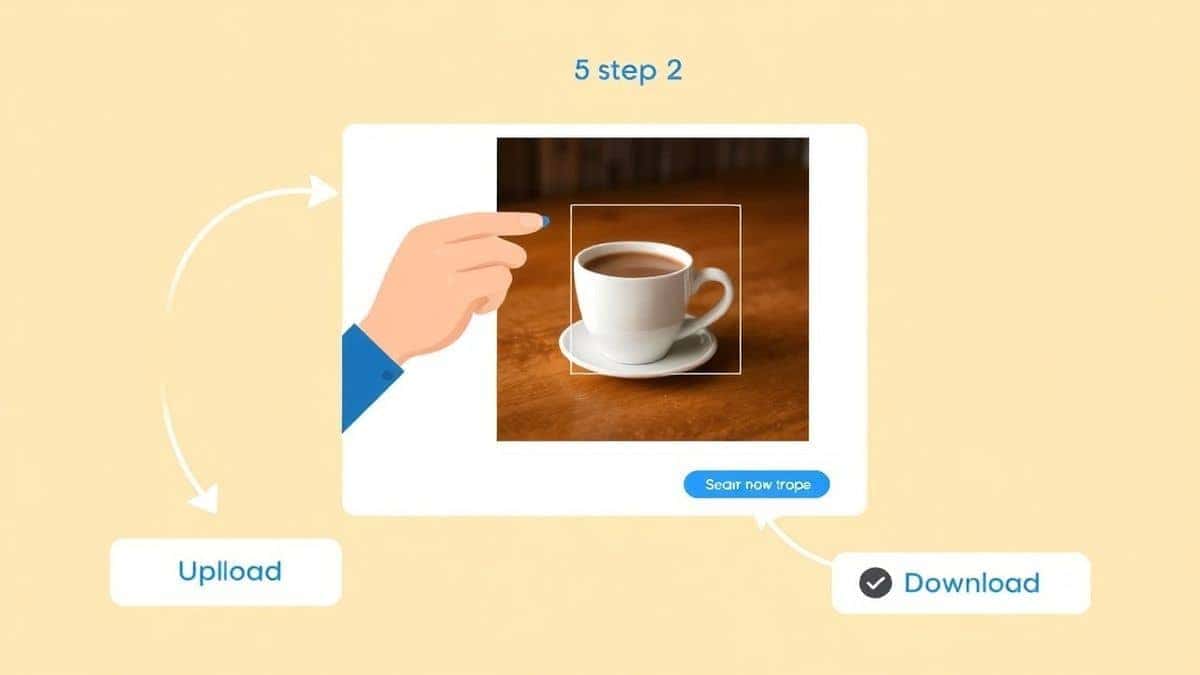
Click on the upload area. Select the image you want to convert from your computer, phone, or cloud storage. The tool accepts all common formats like JPG and PNG.
Step 3: Adjust the Square Crop
Once uploaded, the tool will automatically apply a 1:1 crop overlay. You'll see a square frame over your image. You can:
- Drag the image to reposition it within the square frame. This is where you center your subject.
- Use the slider or handles to zoom in or out, ensuring the best part of your photo fills the square.
One mistake many users make is just hitting "crop" without adjusting. Take those five seconds to perfectly frame your shot.
Step 4: Apply the Changes
Once you're happy with how your image looks within the square, click the button to apply the crop and resize. The tool processes your request instantly.
Step 5: Download Your Square Image
A preview of your new square image will appear. Click the download button to save it to your device. Your photo is now perfectly sized for Instagram. A practical tip is to rename the file before you save it, so you can easily find it later for posting.
Best Practices for Resizing Images for Social Media
To ensure you always get the best results, keep these best practices in mind. From testing different tools and methods over the years, I've learned that these small details make a big difference.
- Always Start with the Highest Quality Source: You can't create quality out of thin air. Start with the largest, highest-resolution image you have. It's always easier to scale down a large, high-quality image without losing sharpness than it is to scale up a small, pixelated one.
- Maintain the Subject's Integrity: When cropping to a square, the goal is to fit the subject, not to cut it off awkwardly. Ensure your main subject—whether it's a person's face, a product, or a key detail—is fully within the square and not cropped at a joint (like ankles or wrists).
- Resize Without Losing Quality: The tool we used is excellent for this, but the principle is to avoid upscaling. You're cropping and then saving at the correct dimensions. Saving your final file as a high-quality JPG (usually setting quality to 80-90%) balances file size and image clarity perfectly.
- Choose the Right File Format: For photographs, JPG is your best friend. It offers great quality with relatively small file sizes. For graphics, logos, or images with text and transparent backgrounds, PNG is the superior choice as it retains sharp lines and transparency.
- Optimize for Your Platform's Specs: Instagram's sweet spot is 1080 x 1080 pixels. By resizing to these exact dimensions, you ensure Instagram doesn't need to do any heavy lifting (or heavy compressing) on its end, which helps maintain the highest possible quality in your feed.
Common Mistakes to Avoid
Even experienced designers can slip up sometimes. Here are the most common pitfalls I see when people learn how to resize an image to a 1:1 square.
- Stretching the Image: This is the cardinal sin of image editing. Never just grab the corner of an image and pull it to make it fit a square. This distorts faces, makes text look warped, and screams "amateur." Always crop to change the aspect ratio; never stretch.
- Ignoring the Final File Size: You've made it a square, but if the file is still 10MB, it's going to take forever to upload on a mobile connection, and it's overkill for a screen image. Use your editing tool to save for web, aiming for a file size under 500KB if possible.
- Forgetting About Mobile Viewers: While the square looks great on desktop, always double-check how your image looks on a small phone screen. Is the text still readable? Is the product still clearly visible? Zoom in if necessary to ensure your message isn't lost.
- Cropping Too Tight: It's tempting to zoom way in on your subject. However, leaving a tiny bit of "breathing room" or negative space around the edges can often make the composition more pleasing and prevent your subject from feeling cramped.
Comparison with Other Tools
You might be wondering how this free online tool stacks up against the heavy hitters. Here’s a quick comparison based on my own workflow.
-
Adobe Photoshop:
- Pros: Unmatched control and precision. You can do batch processing and have endless editing capabilities.
- Cons: It's a professional, complex tool with a steep learning curve. It requires a monthly subscription, which is overkill if you just need to make a picture square for Instagram.
- Verdict: Excellent for pros, but not practical or cost-effective for the average user who just needs a quick fix.
-
Other Online Tools (like Canva, etc.):
- Pros: Canva is great for design, but for a simple crop, you often have to navigate to the right template, create a design, upload your photo, and then download it. It works but has many steps.
- Cons: Many free online tools are riddled with ads, have confusing interfaces, limit file sizes, or require you to create an account, putting your data at risk.
- Verdict: They can do the job, but the process is often clunky and slow compared to a dedicated, one-click tool.
-
Change Aspect Ratio to 1:1 (ResizeOn):
- Pros: It's the most direct path from A to B. No account, no ads, no clutter. It does one thing—resize to a square—and it does it perfectly. It's fast, free, and private.
- Cons: It doesn't have filters, stickers, or text tools. It's purely for resizing and cropping.
- Verdict: The absolute best tool for anyone who needs a fast, simple, and high-quality solution for resizing images to a square format.
Frequently Asked Questions
1. What are the exact dimensions for a square Instagram post?
The ideal dimensions are 1080 x 1080 pixels. Instagram will compress larger files, and smaller ones may appear pixelated. Resizing to this exact size ensures the best quality.
2. Will resizing an image reduce its quality?
It can if you do it incorrectly. However, if you use a good tool and follow best practices, you can resize image without losing quality. The key is to start with a high-resolution original and save the final file correctly, as shown in our guide.
3. Can I resize an image to 1:1 on my phone?
Absolutely. The Change Aspect Ratio to 1:1 tool is web-based and fully responsive. You can open it in your phone's browser, upload a photo from your camera roll, crop it to a square, and save it back to your phone in just a couple of minutes.
4. Is it better to crop in Instagram or use an external tool?
It is always better to use an external tool. Cropping in Instagram gives you less control and doesn't actually change the file. Using an external tool like ResizeOn lets you control the exact composition and deliver a perfectly optimized file to Instagram, resulting in higher quality.
5. What's the difference between cropping and resizing?
Cropping is cutting out parts of an image to change its shape or composition. Resizing is changing the overall pixel dimensions (making the file larger or smaller). To get a perfect square for Instagram, you usually need to do both: crop to the 1:1 shape and then resize to 1080x1080 pixels.
6. Can I resize a vertical (portrait) video to a square?
This guide focuses on images. For videos, the process is different and requires video editing software. However, the principle of cropping to a 1:1 frame is the same, but you have to consider the movement within the frame.
7. My image looks perfect on my computer but blurry on Instagram. Why?
This usually happens for two reasons. First, your image might not be exactly 1080x1080 pixels. Second, Instagram's compression can sometimes soften images with very fine details or text. Saving your JPG at a higher quality setting (like 90-95%) before uploading can help mitigate this.
8. Do I need to pay for a tool to do this?
No! The tool I recommend, Change Aspect Ratio to 1:1, is completely free. You don't need to pay for expensive software just to make your photos square for social media.
Conclusion
Mastering how to resize image to 1:1 square for Instagram posts is a small skill that makes a massive difference to the quality and professionalism of your social media presence. It puts you in control of your visual narrative, ensures your images look their best, and helps build a cohesive and attractive brand.
You don't need to be a Photoshop expert or get tangled up in complicated software. With the right tool, the process is simple, fast, and free.
Stop letting Instagram's automatic crop decide how your story is told. Take the reins and present your images exactly as you intended.
Ready to create the perfect square for your next post?
Try the free Change Aspect Ratio to 1:1 tool now and see the difference for yourself.