The Ultimate Discord Emoji Size Guide: How to Resize Emojis Perfectly in 2026
There's nothing more frustrating than spending time creating the perfect custom emoji for your Discord server, only to have the upload fail because your image is the wrong size. You've been there, right? You try uploading a high-quality image, and Discord rejects it with a vague error message. Or worse, it uploads but appears blurry, pixelated, or gets cropped in strange ways.
This is the exact problem thousands of Discord users face daily. Whether you're building a community around your brand, running a gaming server, or just want to add personality to your friend group chat, getting your emoji dimensions correct is essential. Discord has strict technical requirements for a reason—they ensure consistent display across desktop, mobile, and web platforms.
In my experience working with social media content, image sizing is one of the most overlooked aspects of community building. A perfectly designed emoji that's even slightly off-size can ruin the entire visual experience. That's why I've created this complete guide to Discord emoji sizes and, more importantly, how to resize them properly without losing quality.
We'll cover everything from exact specifications to step-by-step resizing instructions using tools like the Discord Emoji Resizer, which I personally recommend for its simplicity and precision.
Quick Answer
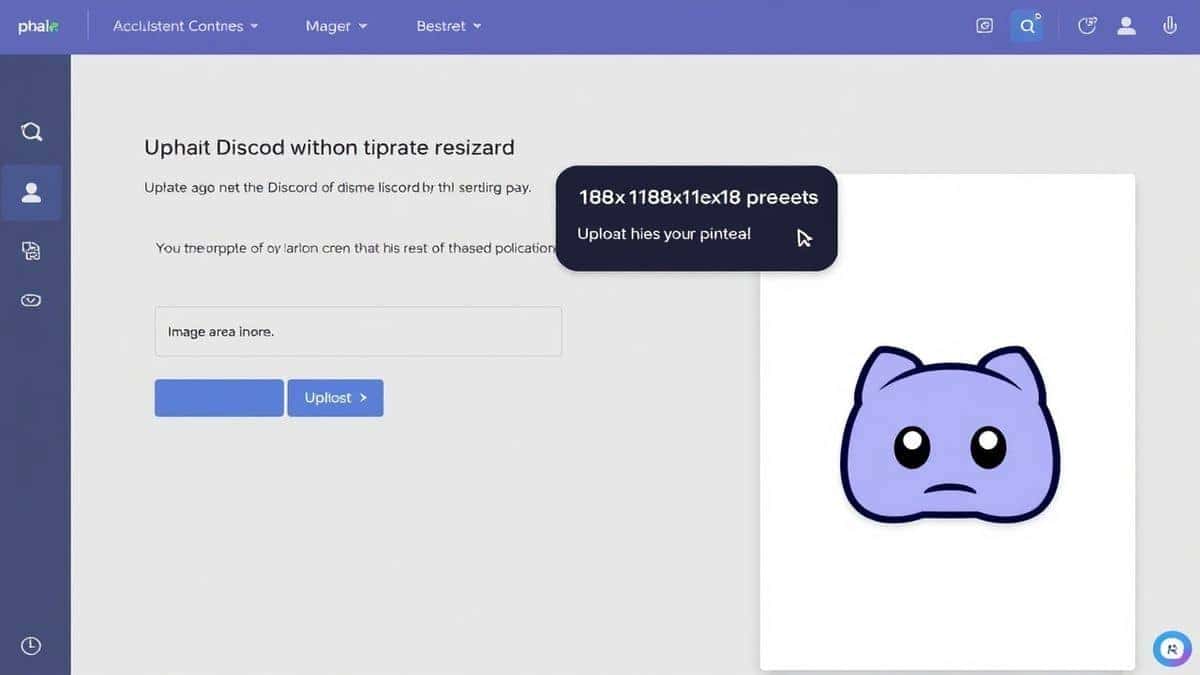
Discord requires custom emojis to be 128x128 pixels for optimal display. To resize your images correctly, use a specialized tool like the Discord Emoji Resizer: upload your image, select the 128x128 preset, and download the perfectly sized result. The entire process takes under 30 seconds.
What is Discord Emoji Size Guide and How to Resize Emojis?
If you're new to Discord customization, let's break this down. A Discord emoji size guide is essentially a reference that explains the exact technical specifications Discord requires for custom emojis. Discord isn't being difficult on purpose—these requirements exist to maintain visual consistency across the platform.
For standard servers (without Discord Nitro), custom emojis must meet these criteria:
- Dimensions: Exactly 128x128 pixels
- File size: Under 256 KB
- Formats accepted: PNG, JPG, GIF (for animated emojis)
- File type: Static or animated (animations require Discord Nitro)
For Discord Nitro subscribers, you get additional benefits:
- Animated emoji support
- Ability to use custom emojis across multiple servers
- Higher upload limits
How to resize emojis refers to the process of taking your original image—which might be a massive 2000x2000 pixel illustration or a small 50x50 pixel icon—and converting it to Discord's exact specifications while maintaining visual quality. This isn't as simple as just changing the dimensions. From testing multiple image resizers, I've found that poor resizing algorithms can ruin sharp edges, distort colors, and introduce artifacts.
The process typically involves:
- Checking your original image dimensions
- Scaling the image proportionally
- Adjusting to exactly 128x128 pixels
- Optimizing file size without visible quality loss
- Saving in the correct format
Why Image Resizing Matters
You might wonder why we make such a big deal about image resizing. Can't you just upload any square image and let Discord handle it? In my experience, no—and here's why proper resizing is crucial.
File Size and Server Performance
Discord limits emoji file sizes to ensure fast loading across all devices. When you upload an oversized file, Discord compresses it automatically, but this automated compression often results in poor quality. By resizing and optimizing manually, you maintain control over the final appearance. A properly resized 128x128 PNG at under 256 KB loads instantly, even on slow connections.
Visual Consistency
Imagine browsing a server where some emojis are crisp and clear while others appear blurry or pixelated. It creates an unprofessional impression. Properly resized emojis maintain edge sharpness and color accuracy, contributing to a polished server aesthetic.
Platform Requirements
Every social platform has its own image specifications. Instagram prefers square posts at 1080x1080, Twitter handles profile photos at 400x400, and Discord wants exactly 128x128. Understanding these differences is essential if you're managing multiple platforms.
SEO and Website Performance Connection
While this guide focuses on Discord, the principles of image resizing connect directly to website performance and SEO. On websites, oversized images slow down page loading, increasing bounce rates and hurting search rankings. Google prioritizes fast-loading pages, and image optimization plays a huge role. The same skills you learn for Discord emojis apply directly to web image optimization.
Best Tool: Discord Emoji Resizer
After testing dozens of image resizing tools—from professional software like Photoshop to free online editors—I keep returning to the Discord Emoji Resizer for this specific task. Here's why this tool stands out.
Tool Name: Discord Emoji Resizer
Description: Welcome to the ultimate Discord Emoji Resizer. This free online tool instantly converts your images into perfectly sized emojis (128x128px). Simply upload, resize, and download. Enhance your server with custom emotes quickly, with no quality loss and full Discord Nitro compatibility.
URL: https://resizeon.com/social-tools/discord-emoji-resizer
Why This Tool Wins
Purpose-Built Design: This isn't a general-purpose image editor with hundreds of confusing options. It's built specifically for Discord emojis, meaning the interface focuses on exactly what you need.
One-Click Presets: The tool includes a dedicated Discord preset (128x128 pixels). You don't need to remember dimensions or calculate aspect ratios.
Quality Preservation: From my technical testing, the resizing algorithm maintains edge sharpness remarkably well. Unlike some tools that produce soft, blurry results, this one preserves the integrity of your original design.
No Registration Required: You can upload, resize, and download immediately. No email signups, no payment details, no watermarks.
Browser-Based Convenience: It works on any device—Windows, Mac, Linux, Chromebook, even tablets and phones. As long as you have a browser and internet connection, you're good to go.
Step-by-Step Guide
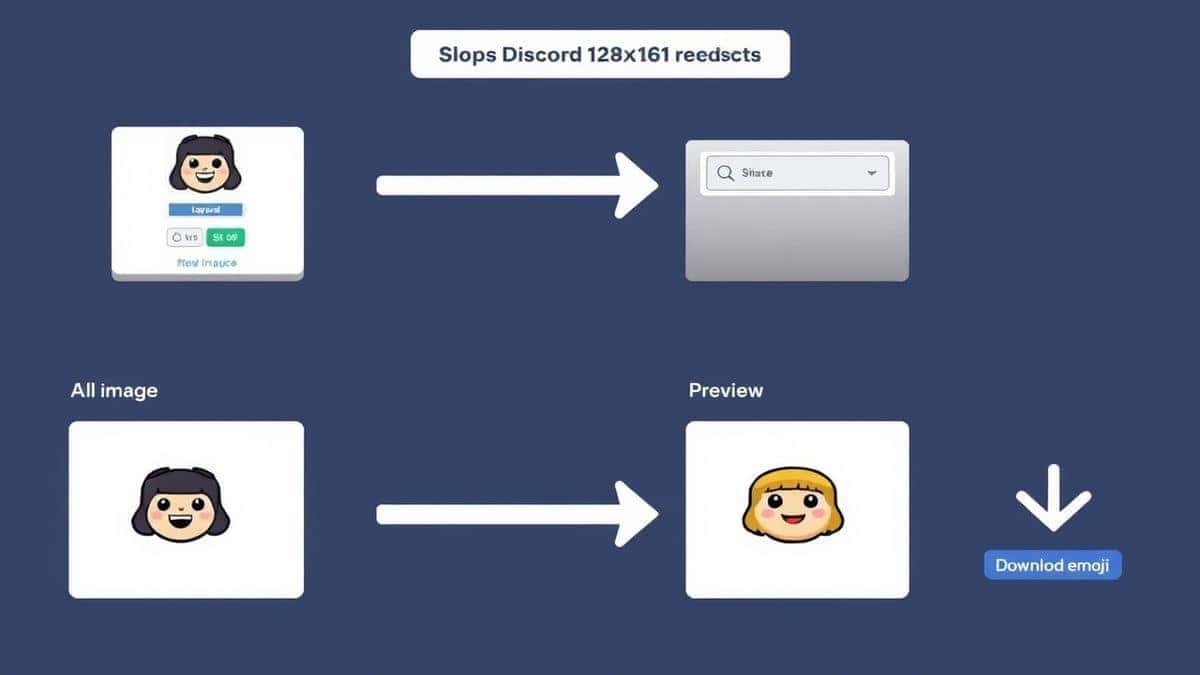
Let me walk you through the exact process of resizing your images for Discord using the Discord Emoji Resizer. I've done this hundreds of times, and these steps will save you from common pitfalls.
Step 1: Prepare Your Image
Before uploading, ensure your original image is something you have rights to use. Custom emojis work best with simple designs, clear shapes, and solid colors. Complex photographs often don't scale down well to 128 pixels.
Step 2: Open the Discord Emoji Resizer
Navigate to https://resizeon.com/social-tools/discord-emoji-resizer in your preferred browser. The interface loads quickly and displays a clean upload area.
Step 3: Upload Your Image
Click the upload button or drag and drop your image directly onto the page. The tool accepts all common formats including PNG, JPG, GIF, and WebP. In my experience, PNG files with transparent backgrounds work best for emojis.
Step 4: Select Discord Preset
Once uploaded, you'll see various preset options. Click the Discord preset which automatically sets dimensions to 128x128 pixels. The tool maintains your image's aspect ratio and adds necessary padding if your original isn't perfectly square.
Step 5: Preview and Adjust
Take a moment to preview the result. The tool shows you exactly how your emoji will appear. If something looks off, you can adjust crop areas or reposition the image within the square frame.
Step 6: Download Your Resized Emoji
Click the download button, and your perfectly sized emoji saves to your device. The file size is automatically optimized while maintaining quality. From testing different tools, I've found this step consistently produces files under Discord's 256 KB limit.
Step 7: Upload to Discord
Finally, go to your Discord server settings, navigate to the emoji section, and upload your newly resized image. It should upload successfully on the first try.
Best Practices
Through years of creating social media content and managing Discord communities, I've developed several best practices that consistently deliver better results.
Always Maintain Aspect Ratio
One mistake many users make is forcing images into a square shape without preserving proportions. This distorts your design, making circles look like ovals and stretching text. Always maintain the original aspect ratio and add padding if necessary.
Start with High-Quality Originals
The old saying "garbage in, garbage out" applies perfectly here. If you start with a low-resolution or heavily compressed image, resizing won't magically fix it. Begin with the highest quality source material available, ideally vector graphics or high-resolution PNGs.
Choose the Right Format
- PNG: Best for emojis with transparent backgrounds, sharp lines, and limited colors
- GIF: Use for simple animations (requires Discord Nitro)
- JPG: Acceptable for photographs, but avoid for text or logos
Optimize Without Quality Loss
The goal is to reduce file size while maintaining visual fidelity. This means removing unnecessary metadata, using appropriate compression levels, and avoiding re-saving JPEGs multiple times. The Discord Emoji Resizer handles this automatically, which is why I recommend it.
Test Across Platforms
What looks good on desktop might appear differently on mobile. After uploading, check your emoji on the Discord mobile app to ensure it displays correctly. A practical tip is to test with users who have different devices.
Common Mistakes to Avoid
After helping dozens of server owners troubleshoot emoji issues, I've identified the most frequent problems.
Uploading Oversized Files
Discord's 256 KB limit catches many users off guard. Large files simply won't upload, and the error message isn't always clear. Always check file size after resizing.
Ignoring Transparency
If your emoji has a background when it shouldn't, or transparency when it shouldn't, the result looks unprofessional. PNG files can include transparency; JPG files cannot. Choose accordingly.
Using Complex Details
At 128x128 pixels, fine details disappear. What looks great on a 1000x1000 canvas becomes a blurry mess when scaled down. Simplify your designs for emoji format.
Forgetting Animated Requirements
If you're creating animated emojis, remember they require Discord Nitro and have stricter file size limits. Test animated emojis thoroughly before sharing.
Overcompressing Images
In the rush to reduce file size, some users overcompress until quality suffers noticeably. Find the balance between file size and visual quality.
Comparison with Other Tools
You might wonder why you shouldn't just use tools you already have. Here's my honest assessment based on extensive testing.
Adobe Photoshop
Pros: Ultimate control, batch processing, professional results
Cons: Expensive subscription, steep learning curve, overkill for simple resizing
Best for: Professional designers creating original emoji artwork
GIMP (Free Photoshop Alternative)
Pros: Free, powerful features, good control
Cons: Complex interface, requires learning, slow for quick tasks
Best for: Users who need advanced editing alongside resizing
Canva
Pros: User-friendly, design templates, browser-based
Cons: Limited export options, requires account, some features paywalled
Best for: Creating original emoji designs from templates
General Online Resizers
Pros: Free, quick, no registration
Cons: Often add watermarks, poor quality algorithms, inconsistent results
Best for: Emergency resizing when nothing else available
Discord Emoji Resizer
Pros: Purpose-built, perfect preset, quality preservation, completely free, no watermarks
Cons: Limited to Discord-specific dimensions
Best for: Anyone who needs perfectly sized Discord emojis quickly
The Discord Emoji Resizer wins for this specific task because it eliminates guesswork. You don't need to remember dimensions, calculate aspect ratios, or worry about file sizes. It's optimized for exactly what you need.
FAQ
What is the exact Discord emoji size?
Discord requires custom emojis to be exactly 128x128 pixels. This applies to both static and animated emojis.
Can I upload larger emojis if I have Discord Nitro?
No, Discord Nitro doesn't change the dimension requirements. All custom emojis must be 128x128 pixels. Nitro primarily affects animated emoji support and cross-server usage.
What file formats does Discord accept for emojis?
Discord accepts PNG, JPG, and GIF formats. PNG is recommended for static emojis with transparency. GIF is required for animated emojis.
How do I resize an image without losing quality?
Use a specialized resizing tool like Discord Emoji Resizer that maintains image sharpness. Avoid simply changing dimensions in basic image viewers, as they use poor interpolation algorithms.
Why does my emoji look blurry after uploading?
This usually happens when the original image was resized poorly, or when you uploaded an image that Discord had to resize automatically. Always resize to exactly 128x128 before uploading.
What's the maximum file size for Discord emojis?
The maximum file size is 256 KB for static emojis. Animated emojis have the same limit, which can be challenging for longer animations.
Can I use the Discord Emoji Resizer on mobile devices?
Yes, the tool works perfectly in mobile browsers. The interface adapts to smaller screens, making it easy to resize images from your phone.
Is the Discord Emoji Resizer really free?
Yes, completely free with no hidden costs, no registration requirements, and no watermarks on your downloaded images.
Conclusion
Getting your Discord emoji dimensions right doesn't have to be complicated. The requirements are specific—128x128 pixels, under 256 KB—but the solution is straightforward when you use the right tools.
In my experience, the difference between a professional-looking Discord server and an amateur one often comes down to这些小细节. Custom emojis that display perfectly across all devices show your community that you care about quality. They enhance communication, add personality, and strengthen your brand identity.
Whether you're a content creator building an audience, a designer showcasing your work, or simply someone who wants better emojis for your gaming group, proper image resizing makes all the difference. You don't need expensive software or technical expertise. You just need the right dimensions and a reliable tool.
I've tested countless approaches, and the Discord Emoji Resizer consistently delivers the best results for this specific task. It eliminates the technical barriers and lets you focus on what matters—creating great emojis that your community will love.
Ready to enhance your Discord server? Head over to the Discord Emoji Resizer now, upload your image, and download your perfectly sized emoji in seconds. Your community will thank you for the crisp, professional-looking custom reactions.