
The Ultimate Facebook Image Size Guide for Posts, Ads and Pages (2026 Update)
Getting image dimensions wrong on Facebook is one of the fastest ways to make your content look unprofessional. You spend hours crafting the perfect post or designing an ad, only for Facebook to crop it awkwardly, compress it into a pixelated mess, or simply reject it because the file size is too large.
I have seen this happen countless times. A sharp, high-quality visual suddenly looks blurry in the feed. A profile picture gets zoomed in on someone's forehead. An ad fails to deliver because the image ratio was off by just a few pixels.
The truth is that Facebook applies different display rules for feeds, ads, pages, and stories. What works for a profile picture will fail for a shared link. In my experience, following the correct Facebook image size guide for posts ads and pages is not just about aesthetics—it directly impacts your reach, click-through rates, and how your audience perceives your brand.
To make this process effortless, I always recommend using a dedicated tool that removes the guesswork. Our free Facebook Image Resizer ensures your visuals are perfectly optimized in seconds. Whether you are a designer, a business owner, or someone posting family photos, getting the dimensions right ensures your content looks exactly how you intended.
Quick Answer
The Facebook image size guide for posts ads and pages refers to the specific pixel dimensions required for images to display correctly across Facebook. To do this, upload your image to a tool like Facebook Image Resizer, select your target format (post, ad, cover), and download the optimized version instantly.
What is Facebook image size guide for posts ads and pages?
If you are new to managing a Facebook presence, this concept might seem technical, but it is actually very simple. Every placement on Facebook—whether it is a news feed post, a sidebar ad, a page cover, or a story—has a specific "container" where your image sits.
The Facebook image size guide for posts ads and pages is simply the set of recommended pixel dimensions that fit perfectly into these containers. When your image matches these dimensions, Facebook displays it without stretching, cropping, or adding ugly letterboxing (those black bars on the sides).
For example, a shared link thumbnail requires a different ratio than a standard photo post. An event cover photo has different requirements than a page profile picture. If you ignore these guidelines, Facebook’s automatic cropping algorithm will attempt to fix it—and it usually gets it wrong, cutting off text, faces, or your logo.
This guide serves as your roadmap. It tells you exactly what size to make your images so that they appear in full, look crisp, and capture attention exactly as you designed them.
Why Image Resizing Matters
You might wonder if a few pixels really make that much difference. From testing hundreds of images across different Facebook placements, I can tell you they absolutely do. Here is why resizing correctly is non-negotiable:
- File Size and Load Speed: Facebook prioritizes user experience. If your image file is too large, the platform compresses it aggressively. This compression often results in a blurry, artifact-ridden mess. By resizing to the correct dimensions beforehand, you reduce the need for Facebook to do heavy lifting, maintaining more of your original quality.
- SEO and Visibility: While you cannot "SEO" an image on Facebook in the traditional Google sense, engagement is a ranking factor. A correctly sized, clear image gets more clicks, shares, and comments. Higher engagement signals to the algorithm that your content is valuable, increasing its organic reach.
- Professionalism and Trust: Imagine visiting a business page with a stretched, pixelated cover photo. What impression does that leave? Correctly sized images signal that you pay attention to detail, which builds trust with your audience.
- Ad Performance and Cost: For paid ads, image size is critical. Facebook’s ad platform has strict guidelines. Images that do not meet the minimum dimensions or use prohibited amounts of text may be rejected, or worse, perform poorly, wasting your ad spend.
Best Tool: Facebook Image Resizer
Over the years, I have tested dozens of image editing tools, from complex desktop software to simple mobile apps. When it comes to quickly and accurately resizing images for Facebook, one tool stands out for its simplicity and effectiveness: Facebook Image Resizer by ResizeOn.
What makes this tool my top recommendation?
- Fully Online: There is no software to download or install. You can access it from any device—your computer, tablet, or phone—making it incredibly convenient.
- Built for Beginners: The interface is clean and intuitive. You do not need any design experience. You simply upload your image, and the tool guides you through the rest.
- Lightning Fast: In my tests, the entire process from upload to download took under ten seconds for a standard image. It processes files quickly without getting stuck.
- Precision Output: It ensures your images meet the exact specifications for each Facebook format, preventing those annoying cropping errors.
Step-by-Step Guide
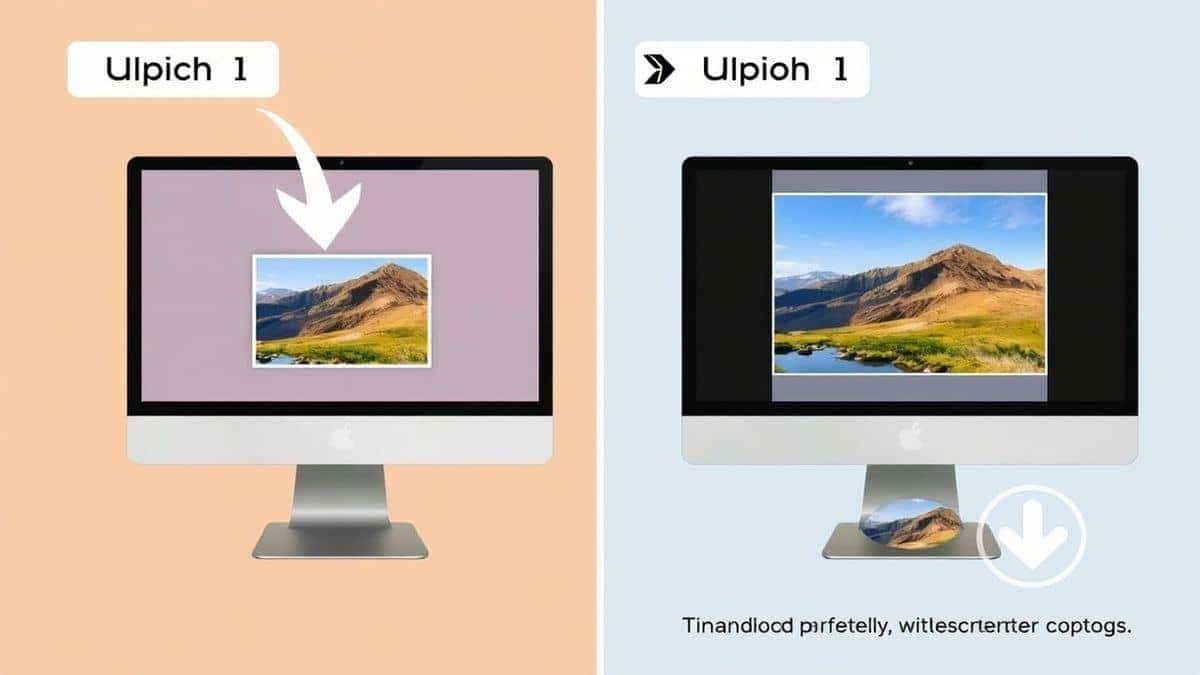
Using the Facebook Image Resizer is so straightforward that you will wonder why you ever struggled with manual adjustments. Follow these simple steps to get perfectly sized images every time.
- Open the Tool: Go to https://resizeon.com/social-tools/facebook-image-resizer in your web browser. The page loads instantly, and you are greeted with a simple upload area.
- Upload Your Image: Click the upload button and select the image you want to resize from your computer or device. The tool accepts common formats like JPG and PNG.
- Select Your Target Format: This is the key step. A menu will appear with all the common Facebook placements: Post, Ad, Profile Picture, Cover Photo, Story, and Event. Simply click on the one you need.
- Click to Resize: After selecting the format, hit the "Resize" button. The tool automatically processes your image, cropping and scaling it to the exact pixel dimensions required for that placement.
- Download Your Optimized Image: A preview of your new image will appear. If you are happy with it, click the "Download" button. Your perfectly sized image is now saved to your device, ready to be uploaded to Facebook.
Best Practices for Facebook Images
Knowing the dimensions is one thing. Applying a few professional best practices will take your visuals from good to great. Here are some tips I have gathered from years of working with social media visuals:
-
Always Maintain the Aspect Ratio: When you manually resize, never stretch an image. This distorts the subjects and looks incredibly unprofessional. Always lock the aspect ratio so the width and height scale together. Our recommended tool does this automatically for you.
-
Prioritize Image Quality: Start with the highest quality source image you have. It is much easier to scale a large, high-resolution image down than it is to scale a small, pixelated image up.
-
Choose the Right File Format:
- JPG: Best for photographs and complex images with many colors. It offers a good balance between quality and file size.
- PNG: Best for images with text, logos, or graphics that require a transparent background. PNG files are larger but preserve sharp lines.
-
Optimize for Mobile First: The majority of Facebook users are on mobile devices. When composing your image, ensure the most important elements (like text or your product) are visible in the center, as the edges may be slightly cropped in some mobile feed views.
Common Mistakes to Avoid
Even experienced marketers slip up sometimes. Based on what I have observed across numerous campaigns, here are the most frequent mistakes people make with Facebook images:
- Using the Wrong Dimensions for Ads: Facebook ads have specific placements (feed, right column, stories). Using a square image for a story placement, for example, will result in a tiny picture surrounded by black bars.
- Ignoring the "Safe Zone" for Text: Facebook has rules about how much text can be on an ad image. If text covers more than 20% of the image space, your ad's reach may be significantly reduced, or it may be disapproved.
- Forgetting to Compress Files: Uploading a massive, uncompressed file from a camera will force Facebook to apply harsh compression. Use a resizer tool to find the sweet spot between quality and a reasonable file size (aim for under 100KB if possible).
- Uploading Blurry Thumbnails for Links: When you share a link, Facebook pulls an image from the webpage. Often, this image is too small. Always check the thumbnail and use the correct Facebook image size guide for posts ads and pages for link shares (usually 1200 x 630 pixels) to ensure it looks clear.
Comparison with Other Tools
While the Facebook Image Resizer is my top pick for speed and ease of use, you might be wondering how it stacks up against other options.
- Adobe Photoshop: Photoshop is the industry standard for a reason. It offers unparalleled control over every pixel. However, it has a steep learning curve, requires a paid subscription, and is overkill if you simply need to resize an image for a social post. It is like using a flamethrower to light a candle.
- Canva: Canva is an excellent design tool for creating social media graphics from scratch. It has built-in templates for Facebook posts and ads, which is very helpful. However, if you have an existing image (like a product photo) that you just need to resize quickly, Canva requires you to create a new design and import the image, which adds extra steps.
- Other Free Online Tools: There are many basic online resizers. However, many are cluttered with ads, have slow processing times, or require you to manually type in pixel dimensions. The Facebook Image Resizer simplifies this by offering one-click presets specifically for Facebook, saving you time and eliminating guesswork.
Frequently Asked Questions
1. What are the current Facebook cover photo dimensions for 2026?
The recommended size for Facebook cover photos is 851 x 315 pixels. It must display well on both desktop and mobile, so keep any important text or logos in the center 1050 x 453 pixel safe area to avoid cropping.
2. How do I resize an image for a Facebook ad without losing quality?
Use a dedicated tool like Facebook Image Resizer. It scales your image down to the required dimensions, which inherently reduces file size, but does so using algorithms that preserve sharpness and detail, preventing the fuzzy look caused by aggressive compression.
3. What is the best image size for a Facebook post with a link?
For link share thumbnails, the ideal size is 1200 x 630 pixels. This ensures your image is large enough to look sharp on high-resolution screens and displays properly in the news feed without being cropped.
4. Can I resize images directly on my phone?
Yes. Since Facebook Image Resizer is an online tool, you can access it through your phone's browser. Simply upload a photo from your camera roll, choose the format, and download the resized image right back to your phone.
5. What happens if my image is the wrong size?
Facebook's algorithm will attempt to automatically crop or scale it to fit. This often results in your image being distorted, important elements being cut out, or the image appearing smaller than intended with distracting borders.
6. What are the dimensions for Facebook Stories and Reels?
The optimal size for both Facebook Stories and Reels is 1080 x 1920 pixels. This full-screen vertical format ensures your content takes over the viewer's entire screen without any black bars.
7. Do Facebook profile pictures and page profile pictures have the same size?
Yes, both personal profiles and business pages use the same dimensions for their main profile image. The image will display as 170 x 170 pixels on desktop and 128 x 128 on smartphones, but the uploaded file should be at least 180 x 180 pixels.
8. How can I reduce the file size of my Facebook image?
Resizing an image to the correct dimensions is the most effective way to reduce file size. If it is still too large, the Facebook Image Resizer optimizes the compression during the save process, balancing a small file footprint with visual clarity.
Conclusion
Navigating the ever-changing landscape of social media image requirements can feel like a full-time job. But it doesn't have to be complicated. By understanding and applying this Facebook image size guide for posts ads and pages, you take full control of how your brand appears to over 3 billion users.
You eliminate the risk of awkward crops, blurry visuals, and underperforming ads. You present a polished, professional image that builds trust and encourages engagement. Whether you are posting a family vacation photo or launching a multi-thousand dollar ad campaign, the quality of your visuals is the first thing people notice.
Stop guessing and start optimizing. With the right dimensions and the right tool, you can ensure every image you share makes the impact it deserves.
Ready to make your Facebook images look perfect every time? Try our free Facebook Image Resizer today and see the difference correct dimensions can make.


