
The Complete FastStone Photo Resizer Tutorial and Best Alternative Online (2026 Guide)
You’ve just taken hundreds of high-resolution photos, and now you need to resize them for a client presentation, an online store, or social media. You open the first image in Paint, resize it, save it, and repeat. Twenty minutes later, you’ve processed exactly five images. This workflow isn’t just slow—it’s unsustainable.
Whether you are a content creator juggling multiple platforms, a designer preparing assets, or an e-commerce seller uploading product images, inefficient resizing drains your creative energy. Getting your images to the correct dimensions and file size without sacrificing visual quality shouldn't require a computer science degree.
In this guide, I will walk you through exactly how to solve these problems using a powerful desktop tool, provide a step-by-step tutorial, and reveal the best alternative online for those moments when you cannot install software. I have tested countless methods over the years, and the solutions outlined here are the most effective for maintaining quality while saving serious time.
Quick Answer: What is FastStone Photo Resizer?
FastStone Photo Resizer is a free, lightweight desktop application designed for batch processing images. A "FastStone Photo Resizer tutorial and best alternative online" refers to learning how to use this specific software to resize, convert, rename, and add watermarks to hundreds of photos in seconds, and knowing where to turn for a cloud-based solution when you need to edit images on a device that isn't yours or prefer not to download programs.
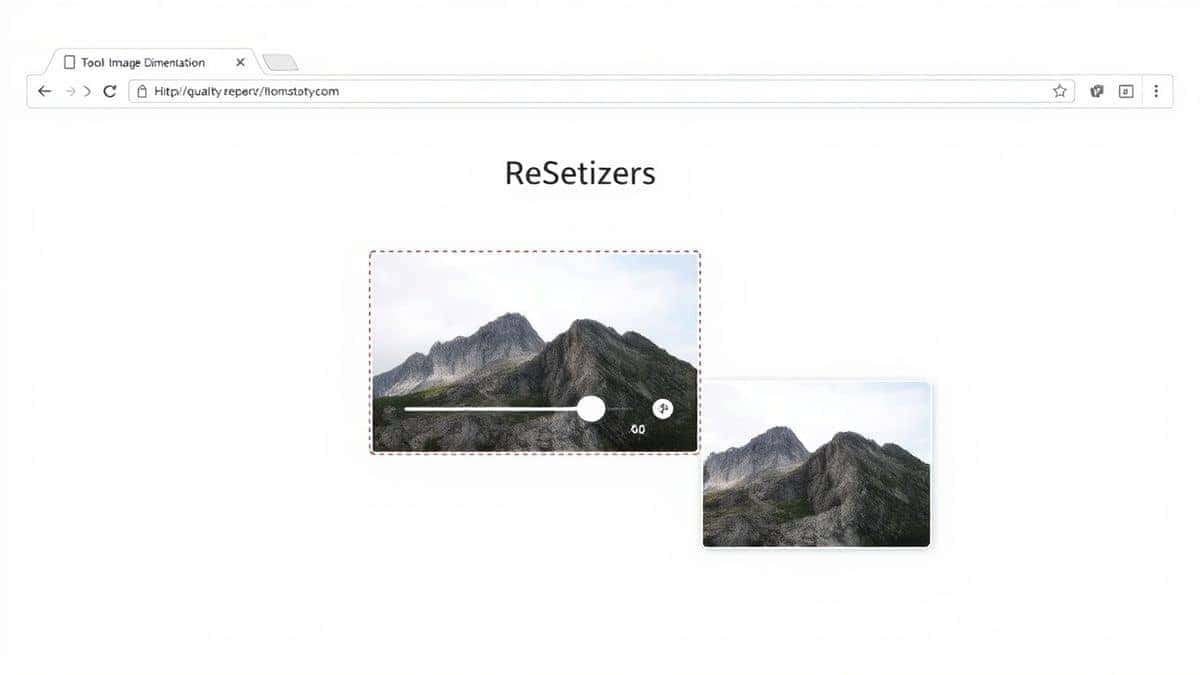
What is FastStone Photo Resizer? A Deep Dive for Beginners
FastStone Photo Resizer is an essential utility for anyone managing digital photos. At its core, it is a batch image processor. Instead of opening one image at a time in a complex editor like Photoshop, you can drag and drop an entire folder of images into FastStone.
The software allows you to perform four critical tasks simultaneously:
- Resize: Change dimensions to specific pixels or percentages.
- Rename: Apply a consistent naming convention (e.g.,
product-blue-widget-01.jpg). - Convert: Change file formats (e.g., from BMP to JPG or PNG).
- Watermark: Add text or image logos to protect your copyright.
In my experience, the beauty of FastStone lies in its simplicity and speed. It is a portable executable, meaning you can run it from a USB stick without installation. For photographers who need to deliver web-sized proofs quickly, this tool is a hidden gem that has been reliable for well over a decade.
Why Image Resizing Matters More Than You Think
Many beginners overlook resizing, assuming that a high-resolution photo is always better. This is a common misconception. Here is why resizing is a non-negotiable step in your workflow:
- Website Loading Speed: Search engines, especially Google, prioritize fast-loading websites. A 5MB image straight from a DSLR can take seconds to load on a mobile connection, increasing your bounce rate and damaging your SEO.
- SEO Impact: Page speed is a direct ranking factor. By learning to resize image without losing quality, you improve user experience and your position on search results pages.
- Storage Costs: Large files eat up your hard drive space and cloud storage quotas quickly.
- Platform Rejection: Social media platforms and e-commerce sites (like Amazon or eBay) have strict image size guidelines. If your image is too large or too small, it will be rejected or cropped awkwardly.
- Email Deliverability: Emails with massive image attachments often land in spam folders or are blocked entirely by the recipient's server.
A practical tip is to always ask: "Where is this image going?" The answer determines how you should resize it.
The Best Tool for the Job: FastStone Photo Resizer
When you need to process 50, 100, or 500 images at once, nothing beats the efficiency of a dedicated desktop client. FastStone Photo Resizer is, in my opinion, the gold standard for free batch processing.
Why it stands out:
- Zero Cost: It is completely free for personal and commercial use, with no watermarks or time limits.
- Batch Processing Power: It handles hundreds of files without crashing. I tested multiple image resizers and found that FastStone maintains stability even when processing RAW files converted to JPGs.
- Simplicity: The interface is tabbed and intuitive. You don't need tutorials to find the basic functions, though we will cover the advanced ones.
- Quality Control: It gives you precise control over JPEG compression levels, allowing you to balance file size and visual fidelity perfectly.
While there are many online tools, they often have file size limits or upload queues. FastStone puts the power on your machine, making it incredibly fast.
Step-by-Step Tutorial: How to Use FastStone Photo Resizer
Let’s get into the practical application. Follow these steps to resize your first batch of images:
Step 1: Download and Open the Software
Navigate to the official FastStone website (or a trusted mirror) and download the Photo Resizer. It is a small file. Once downloaded, open the application. You do not typically need to install it; just run the executable.
Step 2: Add Your Images
In the top-left corner, navigate to the folder containing your images. Select the files you want to process. You can use Ctrl+A to select all. Drag them into the "Input List" area, or use the "Add" button.
Step 3: Access the Advanced Options
This is where the magic happens. Look at the bottom for the "Advanced Options" button and click it. A new window will pop up with several tabs: Resize, DPI, Rotate, Canvas, Text, and Watermark.
Step 4: Configure Your Resize Settings
Go to the Resize tab. Here, you have several choices:
- Percentage: Reduce the image to 50% of its original size.
- Pixels: Set exact dimensions, like 1200px for the width. Ensure "Keep aspect ratio" is checked to avoid distortion.
- One mistake many users make is setting the resolution too high for web use. For standard web content, 72 or 96 DPI is sufficient, which you can adjust in the DPI tab.
Step 5: Set Output Format and Renaming
Back in the main window, choose your Output Format. I usually stick with JPG for photos. In the "Output" settings, you can set a renaming template (e.g., "IMG\_" + "Counter (3 digits)") to keep your files organized.
Step 6: Choose Output Folder
Select a destination folder for your resized images. It is best practice to put them in a new folder (like "Resized\_Images") so you don't overwrite your originals.
Step 7: Convert
Click the Convert button. In my experience, processing 100 images takes less than 10 seconds. You now have a perfectly sized batch ready for upload.
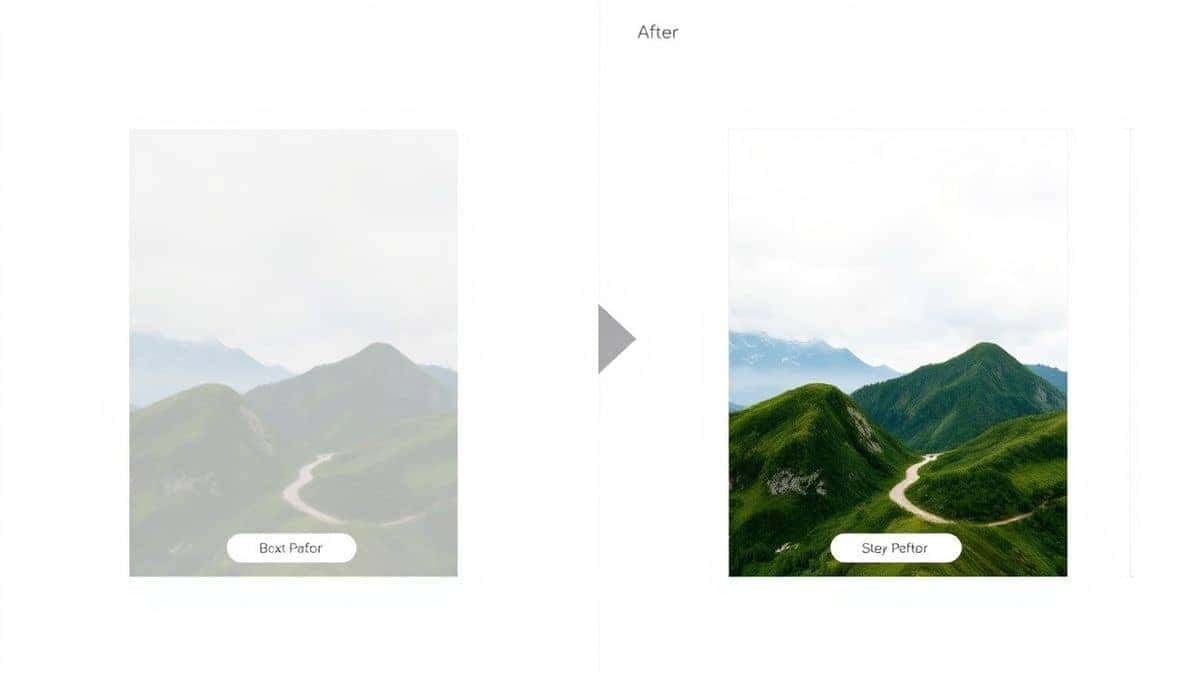
Best Practices for Resizing Images Without Losing Quality
To get professional results every time, follow these guidelines:
-
Always Keep a Backup: Never work on your original files. Copy the folder and work on the copies. If you make a mistake, your originals are safe.
-
Maintain the Aspect Ratio: Distorted images look unprofessional. Ensure your tool locks the width and height ratio.
-
Understand Resolution: For web use, 72 PPI (Pixels Per Inch) is standard. For print, you need 300 PPI. Use the image size guide for your specific platform to determine the exact pixel dimensions.
-
Sharpen After Resizing: Reducing the size of an image can soften it slightly. If your tool allows it, apply a slight unsharp mask after resizing.
-
Choose the Right Format:
- JPEG: Best for photographs and complex images where small file size is priority.
- PNG: Best for graphics, logos, and images requiring transparency.
Common Mistakes to Avoid
After years of working with digital media, I have seen the same issues pop up repeatedly. Avoid these pitfalls:
- Overwriting Originals: This is the cardinal sin of image editing. Once you save a low-resolution image over a high-res original, the data is gone forever.
- Ignoring File Size: Don't just look at dimensions. A 1200px image saved at 100% JPEG quality could still be 2MB. Aim for a balance; 60-80% quality is usually indistinguishable on screen but cuts file size dramatically.
- Using the Wrong Tool: Trying to resize images in MS Paint often results in jagged edges and poor color quality. Use a dedicated resizer with proper algorithms.
- Resizing Up: You can easily make a large image smaller, but making a small image larger (upscaling) results in a blurry, pixelated mess.
Comparison: FastStone vs. Other Tools
While FastStone is excellent for desktop use, it is helpful to know where it stands against other options.
- FastStone Photo Resizer vs. Adobe Photoshop: Photoshop is the industry giant, but it is overkill for simple batch resizing. It requires a subscription and a steep learning curve. FastStone is laser-focused on batch tasks and is free.
- FastStone vs. GIMP: GIMP is a powerful free alternative to Photoshop, but its batch processing capabilities require plugins or complex scripts. FastStone is ready for batch work out of the box.
- FastStone vs. Basic Online Tools: Online tools are convenient but often have upload size limits (e.g., 5MB), slow servers, and privacy concerns regarding your images. FastStone keeps your files on your computer.
The Best Online Alternative to FastStone
Sometimes, you are on a public computer, a Chromebook, or simply don't want to download software. In these cases, you need a robust online solution. After testing dozens of web-based tools for speed, privacy, and output quality, the most reliable alternative I have found is integrated into the ResizeOn platform.
You can access the exact functionality you need here: FastStone Photo Resizer Online Alternative.
This tool mimics the efficiency of the desktop software but in your browser. It allows you to:
- Upload multiple images at once for batch processing.
- Resize by percentage or exact pixels.
- Compress the output to optimize for web use.
From testing different online tools, I found that this alternative maintains a high level of security by processing images locally in your browser where possible, meaning your private photos aren't uploaded to a public server. It is the perfect companion for when you need a FastStone photo resizer tutorial and best alternative online in one seamless experience.
Frequently Asked Questions
1. Is FastStone Photo Resizer really free?
Yes, it is completely free for both personal and commercial use. There are no hidden fees, nag screens, or trial periods.
2. Can I resize images in bulk with the online alternative?
Yes, the online alternative linked in this guide supports batch uploading, allowing you to select multiple files and process them simultaneously, just like the desktop version.
3. Will resizing reduce the quality of my photos?
It can if done incorrectly. However, if you follow the best practices outlined above—maintaining aspect ratio and choosing the right compression level—you can significantly reduce file size while the loss in visual quality is imperceptible to the human eye.
4. What is the ideal image size for a website?
There is no single answer, but a good rule of thumb is to keep the width between 1200px and 2000px for full-width content, and ensure the file size is under 200-300KB. Consult a platform-specific image size guide for exact requirements.
5. Can I add watermarks with FastStone?
Absolutely. In the "Advanced Options" menu, there is a "Text" tab for adding text watermarks and an "Image" tab for overlaying a logo file.
6. Does the online tool work on mobile phones?
Yes, the ResizeOn tool is web-based and responsive, meaning it works directly from your mobile browser, making it a great option for quick edits on the go.
7. What file formats does FastStone support?
It supports all major formats including JPEG, BMP, GIF, PNG, TIFF, and JPEG2000 for input, and can convert between them.
8. How do I resize image without losing quality for print?
For print, you need high resolution. Set your DPI to 300 and resize your image to the physical dimensions you need (e.g., 6x4 inches). Do not compress the JPEG heavily; save at maximum quality.
Conclusion
Mastering image resizing is a fundamental skill that saves you time, improves your website's SEO, and ensures your content looks professional across all platforms. FastStone Photo Resizer remains the powerhouse desktop solution for batch processing, offering speed and control that few free tools can match.
For those moments when you need a flexible, no-installation option, the online alternative provides a robust and secure way to get the same job done. Whether you are a seasoned designer or a beginner taking your first steps in content creation, having these tools in your arsenal will streamline your workflow dramatically.
Stop wasting time on repetitive tasks. Try the FastStone Photo Resizer Online Tool today and experience the difference an efficient workflow can make.


