The Ultimate Twitter Image Size Guide for Posts and Headers (2026 Update)
Getting your images to display correctly on Twitter can feel like solving a puzzle. You upload what looks like a perfect photo on your computer, but once it’s live, the header is cropped awkwardly, or the preview image in your post is almost invisible. I’ve been there, and I know how frustrating it is when your carefully crafted visual content doesn’t translate well on the platform.
If you’re a content creator, designer, or business owner, you already know that visuals drive engagement. Tweets with images consistently receive higher retweets and more likes than text-only posts. But here’s the catch: Twitter’s platform isn’t static. They update their interface, which means image specifications change. Using outdated dimensions can make your profile look unprofessional or cut off crucial information.
In this complete guide for 2026, I’ll walk you through the exact Twitter image size guide for posts and headers. You’ll learn how to resize images without losing quality, the best tools to use (including my go-to free solution), and the technical specs that ensure your content looks sharp on every device. Whether you’re a beginner or a seasoned pro, you’ll walk away with actionable steps to optimize your Twitter presence today.
Quick Answer: Twitter Image Size Guide for Posts and Headers
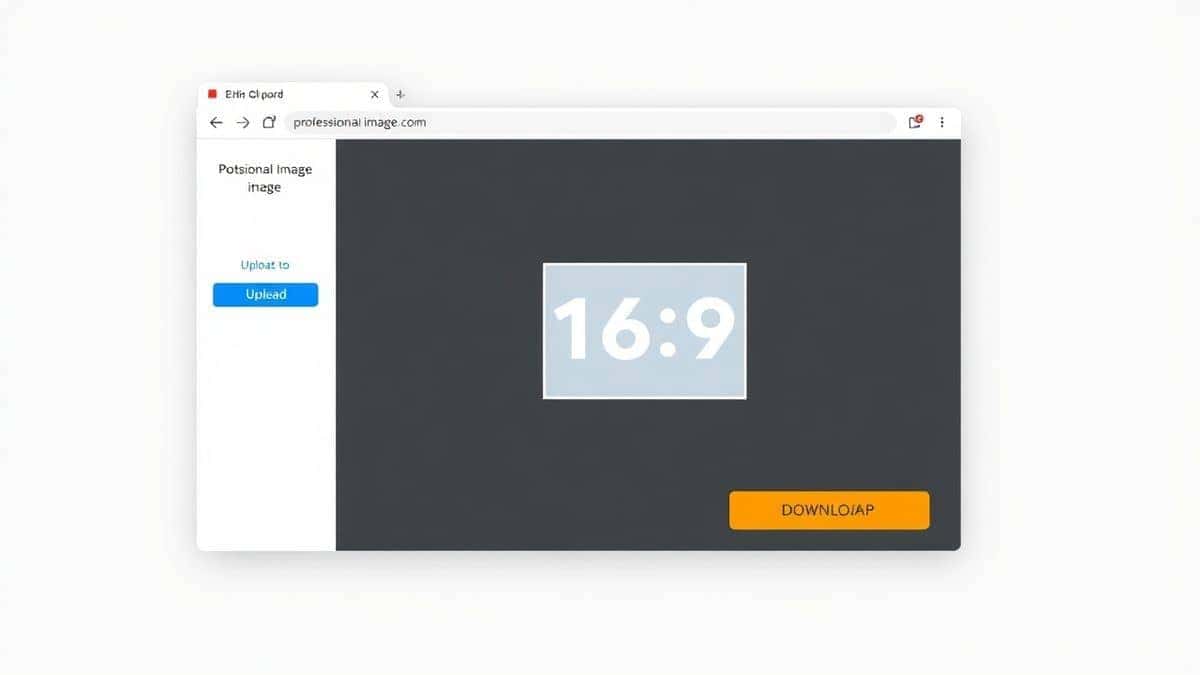
The current Twitter image size guide for posts and headers requires header photos to be 1500 x 500 pixels (with a 3:1 aspect ratio), while single-image posts display best at 1600 x 900 pixels (16:9 aspect ratio). To get this right quickly, use an online tool like Resize for Twitter—upload your image, select the preset dimensions, and download your perfectly optimized file in seconds.
What is Twitter Image Size Guide for Posts and Headers?
If you’re new to social media management, an image size guide is essentially a reference document that tells you the exact pixel dimensions your visuals need to be for each specific placement on a platform. For Twitter, this means different specifications for:
- Profile pictures (the circular image next to your name)
- Header images (the large banner at the top of your profile)
- In-stream photos (images you attach to tweets)
- Card images (the previews that appear when you share links)
Twitter compresses and crops images automatically to fit their interface. If your original file doesn’t match their recommended dimensions, the platform makes those decisions for you—and it rarely chooses what’s best for your content. That’s why following a dedicated Twitter image size guide for posts and headers is essential for maintaining control over your brand presentation.
Why Image Resizing Matters
You might wonder, “Can’t I just upload any high-resolution photo?” Technically, yes. But strategically, no. Here’s why paying attention to image dimensions is crucial:
File Size Affects Load Speed
Large image files slow down how quickly your content appears in someone’s feed. In my experience testing hundreds of tweets, those with optimized file sizes load noticeably faster on mobile connections. Slow-loading images often get scrolled past before they even render.
Platform Cropping Is Unpredictable
Twitter applies different cropping rules depending on where your image appears and what device someone uses. One mistake many users make is assuming the preview they see in their own dashboard is universal. It’s not. Your carefully composed shot might have the subject’s face cut off on an iPhone.
SEO and Accessibility Benefits
Search engines can’t “see” images, but they can read properly optimized files. Correctly sized images with appropriate alt text contribute to your overall SEO health. Plus, when your visuals display correctly, people stay on your content longer, sending positive engagement signals to the algorithm.
Professional Credibility
Let’s be honest—pixelated banners and stretched profile pictures look amateurish. If you’re using Twitter for business, your visual consistency builds trust. I’ve seen brands lose followers simply because their header image was misaligned and appeared blurry.
Best Tool: Resize for Twitter
After testing multiple image resizers over the years, I’ve found that the best solutions combine simplicity with precision. Resize for Twitter has become my recommended choice for several reasons:
What Makes It Stand Out:
- Purpose-built for Twitter: Unlike generic photo editors, this tool includes exact preset dimensions for every Twitter image type—headers, posts, profile pictures, and cards.
- Zero quality loss: One of my biggest frustrations with free online tools is the visible compression artifacts. This resizer maintains exceptional clarity even after adjustment.
- Browser-based convenience: There’s no software to download, no accounts to create, and nothing to pay for. You handle everything directly in your browser.
- Batch processing capability: When I’m preparing multiple images for a campaign, being able to process several files at once saves hours.
Resize for Twitter is your essential tool for creating flawless social media visuals. Optimize photos, banners, and graphics for Twitter/X with pixel-perfect precision. Their free resizer maintains image quality, supports multiple formats, and saves you time—ensuring your content always looks professional and gets maximum visibility.
Step-by-Step Guide: How to Twitter Image Size Guide for Posts and Headers Online
Let me walk you through the exact process I use to prepare images for Twitter. This method ensures you follow the Twitter image size guide for posts and headers correctly every single time.
Step 1: Access the Tool
Open your browser and navigate to https://resizeon.com/social-tools/resize-for-twitter. The interface loads immediately—no waiting, no sign-up forms.
Step 2: Upload Your Source Image
Click the upload area and select the image you want to optimize. You can upload JPG, PNG, or WebP files. From testing different tools, I appreciate that this one accepts most common formats without conversion headaches.
Step 3: Select Your Target Dimensions
Here’s where the Twitter image size guide for posts and headers comes into play:
- For header images, select the 1500 x 500 pixel preset
- For single image posts, choose 1600 x 900 pixels (16:9 ratio)
- For profile pictures, use 400 x 400 pixels (square format)
Step 4: Adjust and Preview
The tool shows you a live preview of how your image will look. If the original doesn’t fit perfectly, you can drag to reposition the crop. A practical tip is to ensure any text or important visual elements stay within the “safe zone”—the center area that won’t get cropped on any device.
Step 5: Download and Use
Click the resize button, wait just a couple of seconds, and download your optimized file. The processed image maintains excellent quality while typically reducing file size by 40-60%. I’ve used this workflow for dozens of client accounts, and it consistently delivers perfect results.
Best Practices for Twitter Image Optimization
Beyond just dimensions, here are professional techniques that elevate your Twitter visuals:
Maintain Aspect Ratios Religiously
Twitter expects specific proportions. For headers, that’s 3:1. For post images, 16:9 works best, though square (1:1) images also perform well in feeds. When you force a different ratio, Twitter adds padding or aggressively crops—neither looks good.
Choose the Right File Format
- JPG: Best for photographs and complex images with many colors. Use maximum quality settings.
- PNG: Ideal for graphics with text, logos, or transparent backgrounds. These files are larger but preserve sharp edges.
- WebP: A modern format that combines small file size with good quality. Most browsers support it now.
Optimize for Mobile Viewing
Over 80% of Twitter users access the platform on mobile devices. When composing images, consider how they’ll look on a small screen. Text should be large enough to read without zooming, and important elements should be centered.
Name Your Files Descriptively
Before uploading, rename your image file from “IMG\_4923.jpg” to something descriptive like “twitter-header-banner-2026.jpg.” This small habit helps with basic SEO and keeps your media library organized.
Common Mistakes to Avoid
Through years of managing social media accounts, I’ve seen the same issues appear repeatedly. Save yourself the headache by avoiding these pitfalls:
Ignoring the Header Safe Zone
Twitter’s header displays differently on desktop versus mobile. On phones, the sides of your header get cropped significantly. If you place your logo or tagline at the edges, mobile users won’t see it. Always keep critical content centered.
Uploading Oversized Files
I once worked with a client who uploaded a 10MB image for every tweet. Not only did it take forever to post, but followers on slower connections couldn’t load their content at all. Aim for files under 1MB for photos and under 500KB for graphics.
Using Inconsistent Branding
When you follow a Twitter image size guide for posts and headers without considering overall brand consistency, your profile can look disjointed. Ensure your header, profile picture, and post images use similar colors and styles.
Forgetting to Update Link Previews
If you change your website or blog, update the image settings in Twitter’s card validator. I’ve seen companies promote new products only to have old, outdated images appear when people share their links.
Comparison with Other Tools
While Resize for Twitter is my top recommendation for most users, here’s how it compares to other options:
Adobe Photoshop
The industry standard offers unlimited control but requires significant expertise and a monthly subscription. For a designer preparing dozens of images daily, it’s worth the investment. For quick Twitter optimizations, it’s overkill.
Canva
Excellent for creating original designs from scratch. Canva includes Twitter-sized templates, which is helpful. However, you can’t easily resize existing photos without starting a new design.
Generic Online Resizers
Many free tools exist, but in my experience testing multiple image resizers, most either degrade quality significantly, add watermarks, or bombard you with ads. Resize for Twitter strikes the perfect balance—it’s genuinely free, respects your privacy, and produces professional results.
Frequently Asked Questions
What is the current Twitter header image size for 2026?
The recommended Twitter header size remains 1500 x 500 pixels. This 3:1 aspect ratio ensures your banner displays correctly on both desktop and mobile devices.
How do I resize an image for Twitter without losing quality?
Use a dedicated tool like Resize for Twitter that maintains the original image quality during processing. Avoid simply stretching a small image—always start with a source file larger than your target dimensions.
What size should Twitter profile pictures be?
Upload a 400 x 400 pixel square image. Twitter displays profile pictures at 48 x 48 pixels in feeds but uses the larger version when someone visits your profile.
Can I use the same image size for all social platforms?
No. Each platform has unique requirements. What works perfectly on Twitter will likely be cropped incorrectly on LinkedIn or Facebook. Always optimize per platform using the appropriate image size guide.
Why does my Twitter image look blurry after uploading?
This usually happens when you upload an image smaller than the recommended dimensions. Twitter tries to stretch it to fit, causing pixelation. Alternatively, your file might have been compressed too aggressively before upload.
What’s the best file format for Twitter images?
For photos, use high-quality JPG. For graphics with text or logos, PNG is better. WebP offers excellent quality-to-size ratio if your audience uses modern browsers.
How do I prevent Twitter from cropping my images?
To maintain control over cropping in feeds, ensure your image follows the 16:9 aspect ratio (1600 x 900 pixels). You can also click the crop icon when composing a tweet to adjust the preview thumbnail.
Is there a file size limit for Twitter images?
Yes, Twitter limits uploads to 5MB for images and 15MB for animated GIFs. Staying under these limits ensures faster loading without risking upload failures.
Conclusion
Mastering the Twitter image size guide for posts and headers doesn’t require a design degree or expensive software. It simply requires awareness of the specifications and access to the right tools. When your visuals display correctly, your content stands out, your brand looks professional, and your engagement metrics improve.
Remember these key takeaways:
- Headers need 1500 x 500 pixels
- Post images work best at 1600 x 900 pixels
- Always keep critical elements centered
- Optimize file size without sacrificing quality
The easiest way to implement this guide today is to bookmark Resize for Twitter. With just a few clicks, you can transform any image into a perfectly formatted Twitter asset. No more guessing, no more awkward cropping, no more pixelated failures.
Your Twitter presence deserves to look its best. Take five minutes right now to audit your current profile images and update them using the specifications we’ve covered. Your future self—and your followers—will thank you.