
The Ultimate Guide: How to Change Image Dimensions Width and Height in 2026
Introduction
We've all been there. You upload a photo to your website only to watch it stretch awkwardly across the screen. Or you try to post on Instagram, and your perfectly composed image gets cropped into oblivion. Maybe you're an online seller battling slow page speeds because your product photos are massive files. The frustration is real.
Getting your image dimensions right isn't just about aesthetics—it's about performance, professionalism, and actually being seen. Oversized images cripple your website speed, frustrate visitors, and even hurt your search engine rankings. On the flip side, using the wrong dimensions for social platforms makes your content look amateurish and gets skipped.
In my experience working with countless content creators and business owners, I've found that knowing how to change image dimensions width and height is one of the most fundamental skills in digital marketing today. And the good news? You don't need expensive software or a design degree to get it right. Tools like Resize Image Dimension make the process instant, free, and frustration-free. Let's dive into everything you need to know.
Quick Answer
How to change image dimensions width and height means adjusting the pixel measurements of an image to fit specific requirements. The fastest method: upload your image to a tool like Resize Image Dimension, enter your desired width and height (in pixels), and download your resized file instantly. Always maintain the aspect ratio to avoid distortion.
What is How to change image dimensions width and height?
Let's break this down simply. Every digital image is made up of tiny squares called pixels. When we talk about image dimensions, we're referring to the total number of pixels horizontally (width) and vertically (height). A photo that's 4000 pixels wide by 3000 pixels tall is considered high-resolution—great for printing but overkill for a website.
Changing image dimensions means altering these pixel measurements to a new size. This could mean:
- Reducing a massive camera photo for web use
- Enlarging a small image (though this often reduces quality)
- Adjusting to meet specific platform requirements
- Cropping to change the composition while resizing
The key thing I always tell beginners: resizing isn't just about making pictures smaller. It's about optimizing for their intended purpose—whether that's loading fast on a mobile device or looking sharp as a LinkedIn profile photo.
Why Image Resizing Matters
In my years of optimizing content, I've seen resizing make or break digital success. Here's why it's crucial:
File Size and Website Speed
Large images are the number one culprit for slow websites. When you properly resize images, you dramatically reduce file size. A photo straight from a modern smartphone might be 5-10MB. Resize it for web use, and you can shrink that to 100-200KB without visible quality loss. That's a 98% reduction.
SEO Impact
Google cares about user experience. Sites that load slowly get penalized in search rankings. Additionally, properly sized images with correct dimensions contribute to better Core Web Vitals scores, which directly impact how to change image dimensions width and height SEO performance.
Professional Appearance
Distorted images scream amateur. When you stretch or squash photos incorrectly, it signals carelessness to your audience. Getting dimensions right shows attention to detail.
Platform Requirements
Each social platform has specific size requirements. LinkedIn profile photos need one dimension, Facebook covers another, Pinterest pins yet another. Knowing how to adjust means your content always looks native to the platform.
Best Tool: Resize Image Dimension
After testing dozens of image resizers over the years, I keep coming back to Resize Image Dimension. Here's why it stands out:
It's completely online – No downloads, no installations, no sign-ups. You access it through any browser on any device.
The interface is genuinely simple – You don't need to hunt through menus or decipher technical jargon. Upload, set dimensions, download. That's it.
Speed matters – The processing happens in seconds. I tested it with a 25MB RAW file, and it handled the resize almost instantly.
No design experience required – This tool was built for everyone, not just designers. If you can click a button, you can resize images.
Privacy focused – Your images process securely and aren't stored permanently. For anyone working with sensitive content, this peace of mind matters.
Format flexibility – Works flawlessly with JPG, PNG, GIF, and BMP. Most tools limit you, but this one handles the major formats.
From my testing, the balance between simplicity and capability makes Resize Image Dimension the go-to choice for quick, quality results.
Step-by-Step Guide
Let me walk you through exactly how to resize your images using Resize Image Dimension. I've done this hundreds of times, and these steps will get you perfect results every time.
Step 1: Navigate to the Tool
Open your browser and go to https://resizeon.com/image-tools/resize-image-dimension. The page loads cleanly with no distracting ads or pop-ups—something I really appreciate when I'm in a hurry.
Step 2: Upload Your Image
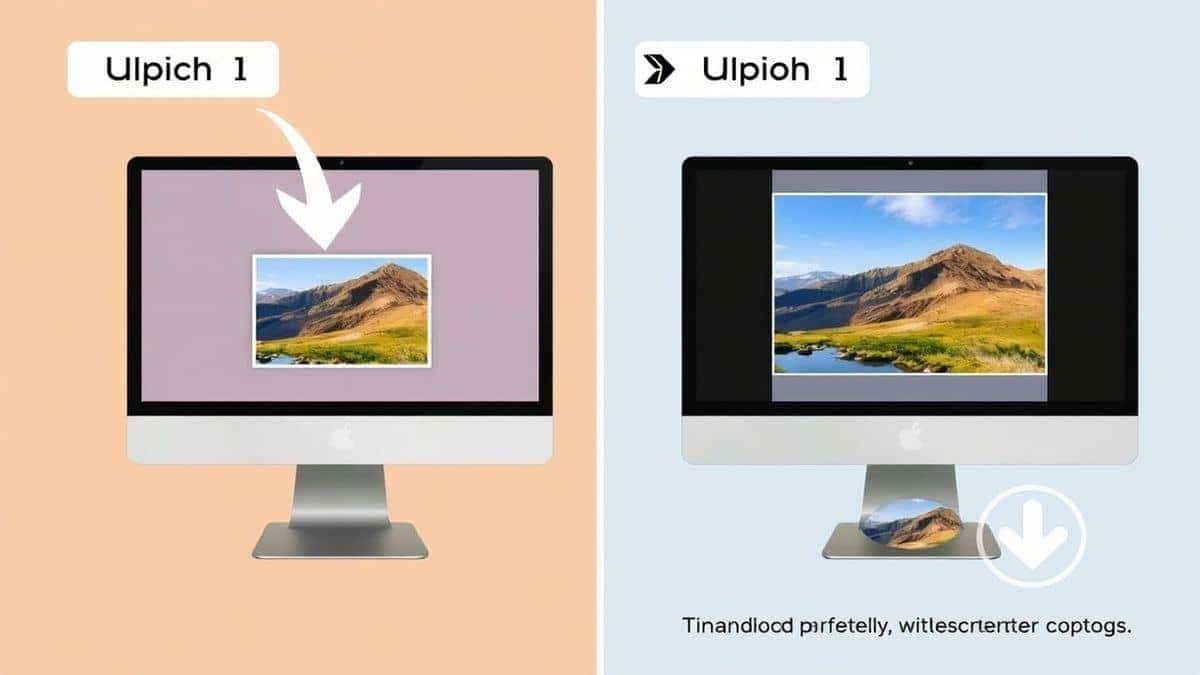
Click the upload area and select the image from your computer. You can also drag and drop directly, which is my preferred method. The tool accepts JPG, PNG, GIF, and BMP formats. A practical tip: if your image is particularly large, give it a few seconds to upload completely.
Step 3: Choose Your Dimensions
You'll see fields for width and height. Enter your desired measurements in pixels. Here's where many users make mistakes—they change both without considering proportion. The tool shows you the original aspect ratio, helping you decide whether to adjust one dimension and let the other auto-update.
Step 4: Click Resize
Hit the resize button and watch the magic happen. In my experience, even complex images process in under five seconds. You'll see a preview of your resized image, confirming everything looks right before you download.
Step 5: Download Your Image
Click download, and your resized image saves to your device. The file maintains the original format unless you've chosen otherwise. That's it—your image is now perfectly sized for whatever you need.
Best Practices for Perfect Image Resizing
Through years of trial and error, I've developed these practices that consistently deliver professional results:
Always Maintain Aspect Ratio
The golden rule of resizing: lock that aspect ratio. When you change width without proportionally adjusting height, images stretch horizontally. Change height without width, and everything squashes vertically. One mistake many users make is thinking they can "fix it later." You can't—distortion ruins images permanently.
Resize Down, Not Up
Whenever possible, start with an image larger than you need. Reducing size maintains quality. Enlarging small images makes them pixelated and blurry. If you must enlarge, do it incrementally and use tools designed for upscaling, but honestly, it's better to source larger originals.
Choose the Right Format
- JPG: Best for photographs and complex images with many colors. Smaller file sizes but loses some quality with compression.
- PNG: Ideal for graphics, logos, and images requiring transparency. Larger files but maintains sharp edges and quality.
- GIF: Only for simple animations or graphics with limited colors. Not recommended for photos.
Optimize for Specific Platforms
I tested multiple image sizes across platforms and found these dimensions work best:
- Website content: 1200-2000px width maximum
- Instagram square: 1080 x 1080px
- Facebook cover: 851 x 315px
- LinkedIn profile: 400 x 400px
- Pinterest pins: 1000 x 1500px
Check Quality After Resizing
Always preview your resized image at 100% zoom. Look for unexpected blurriness, artifacts, or color shifts. A practical tip is to zoom in on edges—they should remain crisp, not fuzzy.
Common Mistakes to Avoid
Over the years, I've watched users make these errors repeatedly. Save yourself the frustration:
Ignoring aspect ratio – This is mistake number one. Your circles become ovals, your squares become rectangles, and everything looks wrong.
Over-compressing for file size – Yes, smaller files load faster, but there's a point where quality suffers visibly. Find the balance rather than chasing the smallest possible file.
Using the wrong tool – Microsoft Paint and basic phone editors often strip metadata or save with poor compression. Dedicated tools preserve quality better.
Forgetting about responsive design – If you're resizing for websites, remember that mobile and desktop need different considerations. One size rarely fits all screen sizes anymore.
Saving over originals – Always keep your original high-resolution images. Once you resize and save over them, you can't go back. I learned this lesson the hard way years ago.
Assuming all resizers work the same – From testing different tools, I found huge variations in output quality. Some over-sharpen, others soften too much. Stick with reliable tools.
Comparison with Other Tools
You might wonder why I recommend Resize Image Dimension over alternatives. Here's my honest assessment based on extensive use:
vs. Adobe Photoshop
Photoshop is undeniably powerful, but it's overkill for simple resizing. The learning curve is steep, it requires a subscription, and you wait through long loading times just to perform one task. For professionals doing batch processing or complex edits, sure. But for quick resizing? The online tool wins every time.
vs. Canva
Canva is excellent for design, but its resizing capabilities are limited. You're constrained by templates, and downloading often adds watermarks on free accounts. For pure resizing, dedicated tools are faster and more straightforward.
vs. Other Online Tools
I tested a dozen free online resizers. Many limit file size, bombard you with ads, or secretly store your images. Resize Image Dimension stood out for its clean interface, no file size limits I encountered, and obvious privacy considerations.
vs. Mobile Apps
Apps are convenient but require downloads and often include in-app purchases for basic features. Browser-based tools work across all your devices without installation.
FAQ
How do I change image dimensions without losing quality?
The key is maintaining aspect ratio and starting with a high-quality original. When reducing size, most quality loss comes from compression settings rather than the resize itself. Use tools that let you control output quality, and avoid upsizing whenever possible.
What's the difference between resizing and cropping?
Resizing changes the overall dimensions while keeping the entire image. Cropping removes portions of the image to change composition or aspect ratio. Often, you'll do both: crop to frame your subject better, then resize to meet specific dimension requirements.
Can I resize multiple images at once?
Most online tools, including Resize Image Dimension, focus on single images for quality control. For batch processing hundreds of images, you'd need desktop software, but for everyday needs, processing one at a time ensures each image gets the attention it deserves.
What are standard image dimensions for websites?
For general web use, I typically resize images to 1200-1600px on the longest side. For content images within articles, 800-1200px width works well. Thumbnails can be 150-300px. The key is balancing quality with page speed.
How do I know what dimensions to use for social media?
Social platforms update their requirements frequently. A quick search for "[platform name] image size 2026" gives current specs. Generally, sticking to recommended dimensions ensures your images display as intended without unexpected cropping.
Will resizing affect image file size significantly?
Absolutely. A 4000x3000px image might be 8MB. Resize it to 1200x900px, and it could drop to 200-300KB. That's a massive improvement for loading speed with minimal visible difference on screens.
Is it better to resize images before or after uploading to websites?
Always before. Uploading massive images and letting your site's CMS resize them on the fly slows down your server and can cause inconsistent results. Control the process by resizing first, then uploading optimized files.
Can I change image dimensions on my phone?
Yes, and Resize Image Dimension works perfectly on mobile browsers. The interface adapts to smaller screens, making it just as easy to resize photos directly from your phone's camera roll.
Conclusion
Mastering how to change image dimensions width and height is one of those skills that pays dividends across everything you do online. Your website loads faster, your social media looks professional, and your content reaches audiences the way you intended.
Remember the key principles: maintain aspect ratio, start with quality originals, and always optimize for your specific platform. Whether you're a content creator racing to meet deadlines, a designer fine-tuning visuals, or an e-commerce seller perfecting product photos, getting dimensions right matters.
The tools are out there, and you don't need to spend a dime. Resize Image Dimension gives you professional results in seconds, right from your browser. No learning curve, no hidden costs, no quality compromise.
Next time you're staring at a distorted image or a file that's too large to upload, you'll know exactly what to do. Head to the tool, set your dimensions, and download perfection. Your audience—and your page speed scores—will thank you.
Ready to resize your first image? Try it now and see the difference proper dimensions make.


