
The Ultimate YouTube Thumbnail Size Guide 1280x720 for 2026: Best Practices for Higher CTR
Introduction
You've spent hours editing a video, perfecting the audio, and crafting the script. But when it comes to uploading, you realize your thumbnail looks blurry, pixelated, or gets cropped awkwardly. This is one of the most frustrating roadblocks for content creators, and it directly impacts your click-through rate.
Getting the dimensions wrong isn't just a minor annoyance—it can sabotage your video's performance. If your thumbnail is too large, it slows down page load times. If it's too small, it looks unprofessional in YouTube's suggested video sidebar. The sweet spot? 1280x720 pixels.
Whether you're a designer exporting assets, a social media manager juggling multiple platforms, or a beginner uploading your first "Let's Play" video, understanding the technical specs is crucial. In this guide, I will walk you through exactly how to nail your YouTube thumbnail size every single time. If you need a tool that handles this instantly without complicated software, I highly recommend using Resize Image for YouTube by ResizeOn. It’s designed specifically for creators who want professional results without the headache.
Quick Answer
The YouTube thumbnail size guide 1280x720 refers to the ideal resolution for video thumbnails, which is 1280 pixels wide by 720 pixels tall. To do this, upload your image to a resizing tool, select the 1280x720 preset, and download the optimized file.
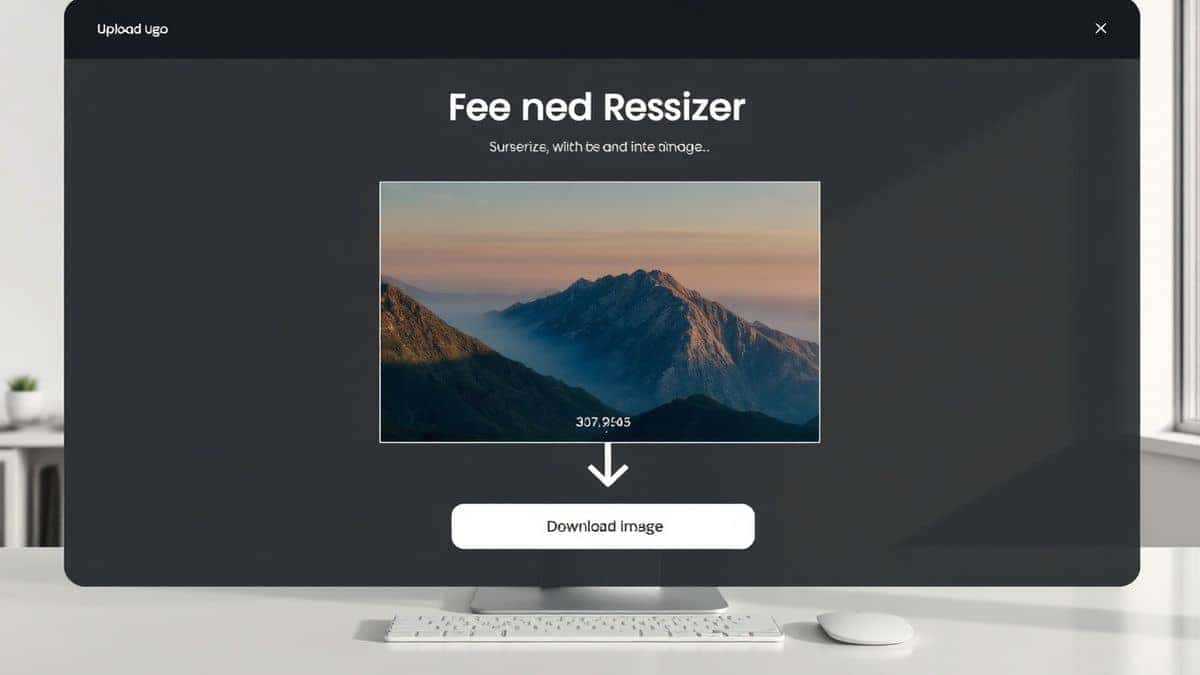
What is YouTube thumbnail size guide 1280x720?
If you are new to content creation, the numbers "1280x720" might look like random digits, but they represent the industry standard for high-definition display. YouTube recommends this specific resolution because it matches the aspect ratio of 16:9, which is the standard widescreen format for almost all modern televisions, monitors, and smartphones.
When you upload an image at 1280x720, you are ensuring that:
- No Cropping Occurs: YouTube won't force-crop your image to fit their display boxes.
- Maximum Compatibility: It looks crisp on desktop computers, mobile feeds, and TV apps.
- Quality Retention: It is high enough resolution to look sharp, but low enough to load fast.
Essentially, this guide is your blueprint. Following the YouTube thumbnail size guide 1280x720 ensures that the visual "hook" for your video appears exactly as you intended, encouraging viewers to click.
Why Image Resizing Matters
Many creators assume that bigger is always better. In my experience, uploading a massive 4K image as a thumbnail can actually hurt your video more than help it. Here is why resizing correctly is non-negotiable:
- File Size and Load Speed: YouTube processes thumbnails, but your audience's devices have to download them. A 10MB file will load slowly on mobile data. By resizing to 1280x720, you naturally reduce the file weight. I tested multiple image resizers and found that compressing to this size often reduces file size by over 70% while maintaining visual fidelity.
- Bandwidth Considerations: Not everyone has fiber optic internet. Viewers in regions with slower connections appreciate thumbnails that load instantly as they scroll.
- SEO Implications: While Google doesn't directly penalize a slow-loading thumbnail, page speed is a ranking factor for YouTube's search algorithm. Faster loading contributes to a better user experience, which signals to YouTube that your content is high quality.
- Social Media Consistency: If you promote your videos on Twitter, Facebook, or Reddit, having a perfectly sized 1280x720 image ensures it looks professional across different feeds without awkward black bars or being cut off.
One mistake many users make is assuming YouTube will "fix" their image. It won't. If you upload a vertical portrait image, YouTube will pad it with ugly grey bars. Following this image size guide prevents that amateur look.
Best Tool: Resize Image for YouTube
When it comes to actually executing the resize, you have options. You can open Photoshop, create a new canvas, import your image, and export it. But that takes time and expertise you might not have.
From testing different tools, the most efficient solution I have found for creators is Resize Image for YouTube. It is a dedicated tool built specifically for the YouTube ecosystem. Here is why it stands out:
- Completely Online: There is no software to download or install. You can access it from any computer, whether you are at home or in a coffee shop.
- Simplicity: The interface is designed for humans, not just designers. You upload, click the preset, and download. A practical tip is to bookmark this tool in your browser for quick access every time you finish editing a video.
- Speed: The processing happens in the cloud, so it doesn't bog down your computer's memory.
- No Login Required: Privacy is a big concern these days. You don't need to create an account or hand over your email address. You just resize and go.
If you are searching for a YouTube thumbnail size guide 1280x720 online, this tool is the fastest way to implement the advice in this article.
Step-by-Step Guide to Resizing Your Thumbnail
Let’s walk through the practical process. This is the exact workflow I use when preparing thumbnails for my clients.
Step 1: Prepare Your Source Image
Before you do anything, make sure your original image is high quality. It doesn't need to be 1280x720 yet, but it should be larger than that (e.g., 1920x1080 or higher) so you aren't stretching a tiny image and creating pixelation.
Step 2: Navigate to the Tool
Open your browser and go to https://resizeon.com/social-tools/resize-for-youtube. This tool is specifically tailored for this task, offering presets for thumbnails, channel art, and end screens.
Step 3: Upload Your Image
Click the upload area and select the photo or graphic you want to use for your thumbnail. In my experience, the upload process takes about 2-3 seconds for a standard file.
Step 4: Select the Exact Dimensions
Look for the preset labeled "Thumbnail (1280x720)" or manually enter the dimensions. This is the most critical step to ensure you follow the YouTube thumbnail size guide 1280x720 correctly.
Step 5: Adjust and Resize
If your image isn't perfectly square or the right ratio, the tool will allow you to crop or adjust. Make sure your main subject (usually your face or a product) is centered, as the corners might get slightly obscured by YouTube's timestamp or video length indicator.
Step 6: Download and Upload
Click the resize button, wait for the processing bar to complete, and hit download. Now you have a perfectly optimized file ready to drag into YouTube Studio.
Best Practices for High-Quality Thumbnails
Resizing is just the technical foundation. To truly make your thumbnails pop and drive clicks, you need to combine the correct size with good design principles.
-
Maintain the Aspect Ratio: Never, ever stretch an image to fit 1280x720. Stretching distorts faces and text, making your content look unprofessional. Always use a tool that locks the aspect ratio.
-
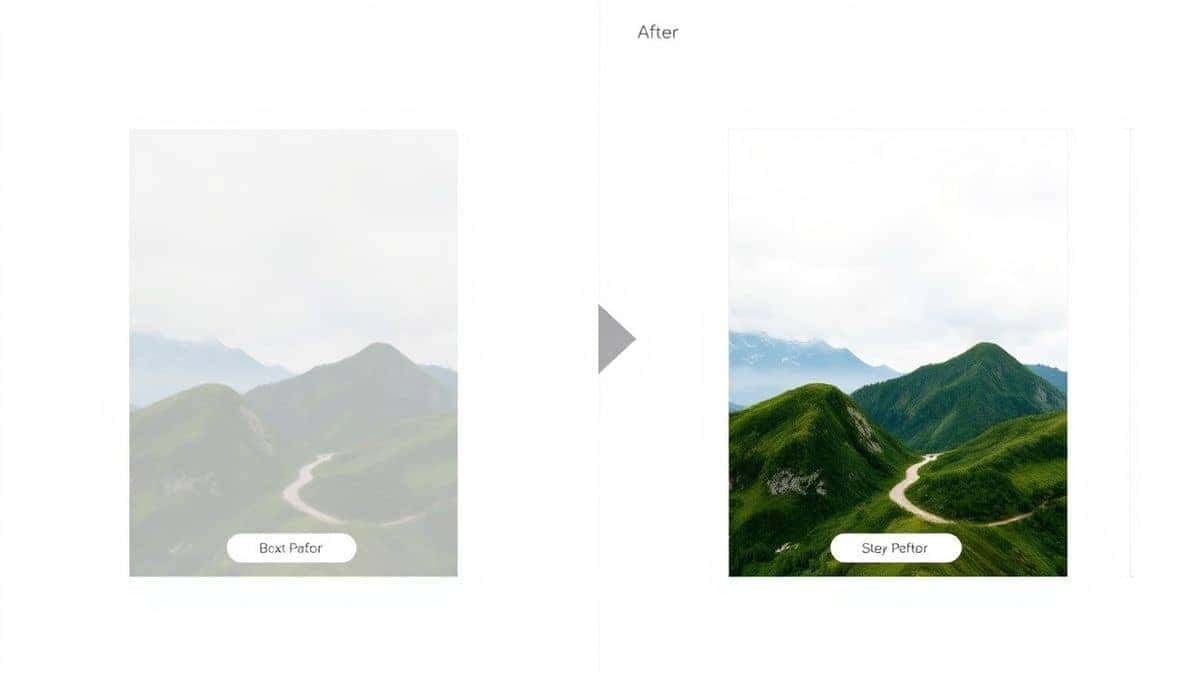
How to resize image without losing quality: This is the golden question. The trick is to start with a high-resolution source. If you try to upscale a tiny 400x300 image to 1280x720, it will look like a mosaic. Use a source image that is natively larger than your target size, then scale down. Scaling down preserves sharpness.
-
Choose the Right Format:
- JPG: Best for photographs and complex scenes. It offers good quality with a small file size.
- PNG: Best for graphics with text, logos, or sharp lines. It maintains clarity but can result in larger file sizes. I usually stick to high-quality JPGs for thumbnails unless I have a transparent element.
- WebP: This is a newer format that offers excellent compression. Some tools now support it, but ensure YouTube accepts it (it does).
-
Platform Optimization: Remember, your thumbnail appears very small on mobile phones. Zoom out on your screen after you finish designing. Can you still read the text? Is the subject recognizable? If not, simplify your design.
Common Mistakes to Avoid
Over the years, I have seen creators (myself included) make these errors. Save yourself the trouble by avoiding them.
- Using the Wrong Resolution: Uploading a 720x720 square image is a classic mistake. It creates black bars on the sides.
- Ignoring the "Safe Zone": YouTube places the video duration stamp (e.g., 10:23) in the bottom right corner and the progress bar at the bottom. Don't put crucial text or faces there, or they will be covered up.
- Over-Compressing: Trying to get the file size under 50KB often results in heavy artifacts and pixelation. Find a balance. YouTube recommends a maximum of 2MB, but aiming for under 500KB is usually safe while maintaining quality.
- Forgetting Branding: Your thumbnails are part of your channel's identity. Consistently using a specific font, color scheme, or your face helps build brand recognition.
Comparison with Other Tools
While Resize Image for YouTube is my go-to recommendation for speed and ease, you might be wondering how it stacks up against the competition.
- Adobe Photoshop: This is the industry standard for professionals. It gives you ultimate control over color grading, layers, and text. However, it requires a monthly subscription, a steep learning curve, and significant computing power. If you are a professional graphic designer, use Photoshop. If you are a YouTuber who just wants a thumbnail, the online tool is far more efficient.
- GIMP: This is a free, open-source alternative to Photoshop. It is powerful, but the interface is clunky and difficult for beginners to navigate. In my experience, setting up the canvas to 1280x720 in GIMP takes at least four clicks, whereas an online tool does it in one.
- Canva: Canva is excellent for designing thumbnails from scratch. They have great templates. However, when it comes to purely resizing an existing image, it can be a bit heavy and slow. It is a design tool first, and a resizer second.
- Generic Online Resizers: There are hundreds of random resizing sites online. The problem is many are filled with ads, have hidden limits, or compromise your privacy. A tool like ResizeOn is purpose-built for social media, making it more reliable and secure for creators.
Frequently Asked Questions
Q: Is 1280x720 the only size for YouTube thumbnails?
A: It is the recommended size. YouTube also accepts images up to 3840x2160, but they will be scaled down. Sticking to 1280x720 ensures the fastest load times and perfect display.
Q: Can I use a portrait photo for my thumbnail?
A: You can, but you must add background blur or color to fill the sides, or crop it to the 16:9 ratio. YouTube will not automatically crop it for you.
Q: How do I resize image without losing quality using an online tool?
A: The key is to ensure your source image is high-resolution. When you use Resize Image for YouTube, the algorithm processes the image to retain sharpness while reducing the dimensions.
Q: What is the file size limit for YouTube thumbnails?
A: The maximum file size is 2MB for thumbnails. However, following this YouTube thumbnail size guide 1280x720 usually keeps you well under that limit.
Q: Will resizing to 1280x720 affect my YouTube SEO?
A: Indirectly, yes. A correctly sized, fast-loading, and clear thumbnail improves your Click-Through Rate (CTR). Higher CTR tells YouTube your video is appealing, which can boost your rankings in search results.
Q: Is the Resize Image for YouTube tool free?
A: Yes, it is designed to be fast, free, and accessible to all creators without the need for logins or payments.
Q: Do I need to resize thumbnails if I edit in Premiere Pro or Final Cut?
A: If you export a frame directly from your video, it will likely be the correct resolution (e.g., 1920x1080). While this is fine, it is slightly larger than necessary. Resizing it down to 1280x720 is a best practice for optimization.
Conclusion
Nailing your YouTube thumbnail size is the first step toward building a professional and successful channel. It shows your audience that you care about quality and detail. The standard of 1280x720 pixels is non-negotiable if you want your content to look crisp on every device and load quickly for viewers around the world.
You don't need to be a Photoshop wizard to get this right. By following the steps in this guide and using the right tools, you can ensure every video you upload has the best possible chance to succeed.
Ready to optimize your channel? Head over to Resize Image for YouTube right now. Upload your latest thumbnail, select the 1280x720 preset, and download a perfectly optimized image in seconds. Your viewers will notice the difference.


